Account Setup & Onboarding
Sign up in seconds and let Nova build your workspace around your tools, team, and first process.
Written By Jolly Amurao
Last updated About 14 hours ago
Starting with Puzzle has never been easier—or more powerful.
The onboarding experience is designed to get you into a useful workspace from day one, rather than leaving you with a blank canvas. Puzzle starts by understanding what you’re trying to accomplish, then lets Nova turn that context into a workspace built around your business.
Whether you want to jump straight into mapping your first process or have Nova help set up your tools, teams, people, and workflows, you can choose the path that fits how you want to work. This guide walks you through both onboarding paths, from creating your account to landing in a workspace that's ready to keep building.
🚀 Benefits of Puzzle Onboarding
⚡ Start Faster: Get from signup to your first mapped process without building your workspace from scratch.
🤖 Let Nova Do the Heavy Lifting: Give Nova information about your business and let it start organizing your workspace for you.
🧩 Choose Your Setup: Start quickly with Quick Onboarding or give Nova more context with Full Workspace Setup with AI.
🏗️ Build on Your Business Context: Provide information about your tools, teams, people, and processes so your workspace starts with meaningful structure.
🎯 Get to Work Immediately: Once onboarding is complete, land directly in your workspace with Nova ready to help you continue building.
Video Guide
Coming soon..
How to Set Up Your Puzzle Account
Here's a walkthrough of every screen you'll see during signup, from account creation to landing in your workspace.
1️⃣ Create Your Puzzle Account
1️⃣ Create Your Puzzle Account
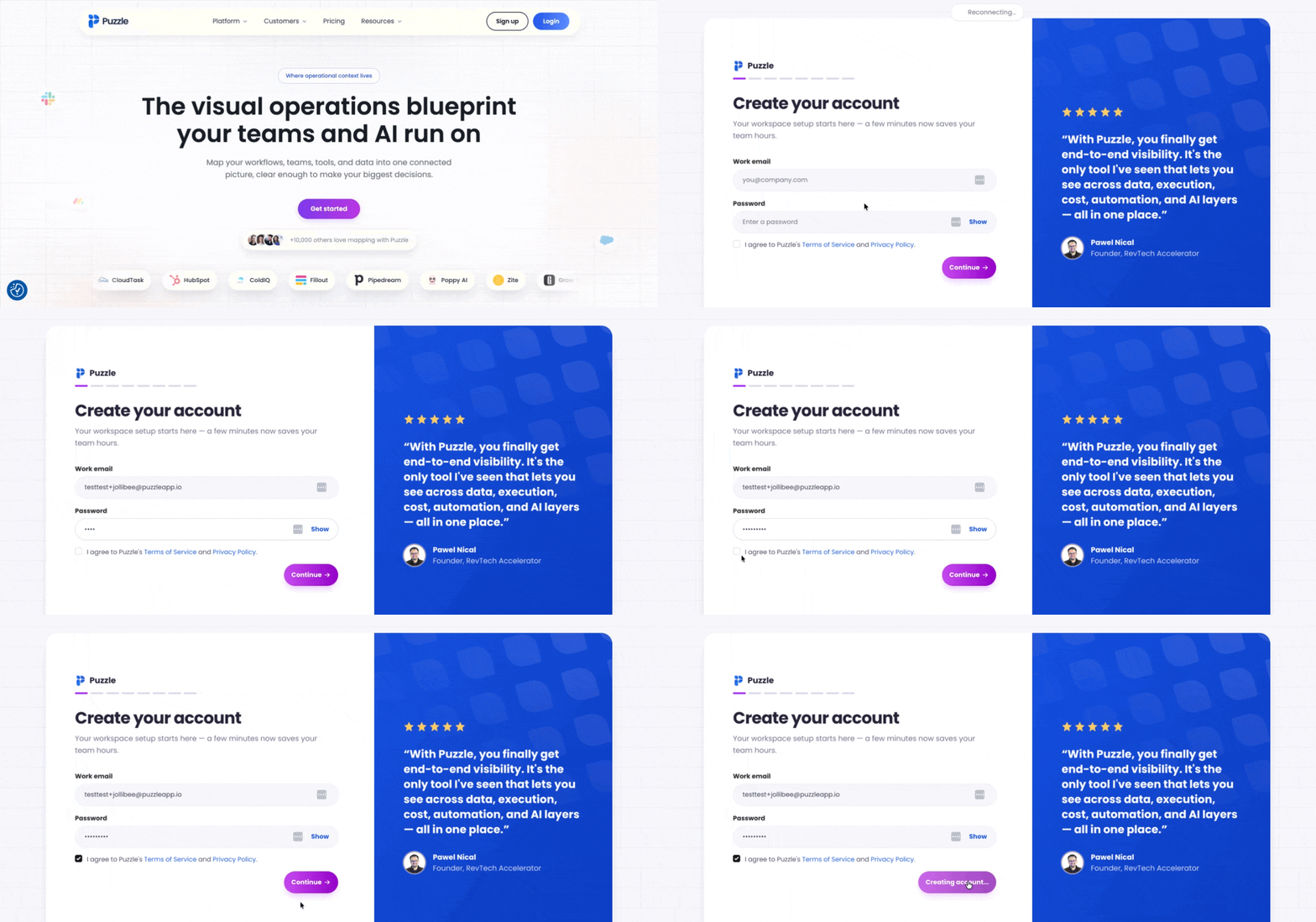
When you select Sign Up, you'll be taken to the account creation screen.
To create your account:
Enter your work email
Set a password
Check the box to agree to the Terms of Service
Click Continue
Already have an account? Click the login link below the signup form to head to app.puzzleapp.io/login.
2️⃣ Tell Puzzle What You're Here to Do
2️⃣ Tell Puzzle What You're Here to Do
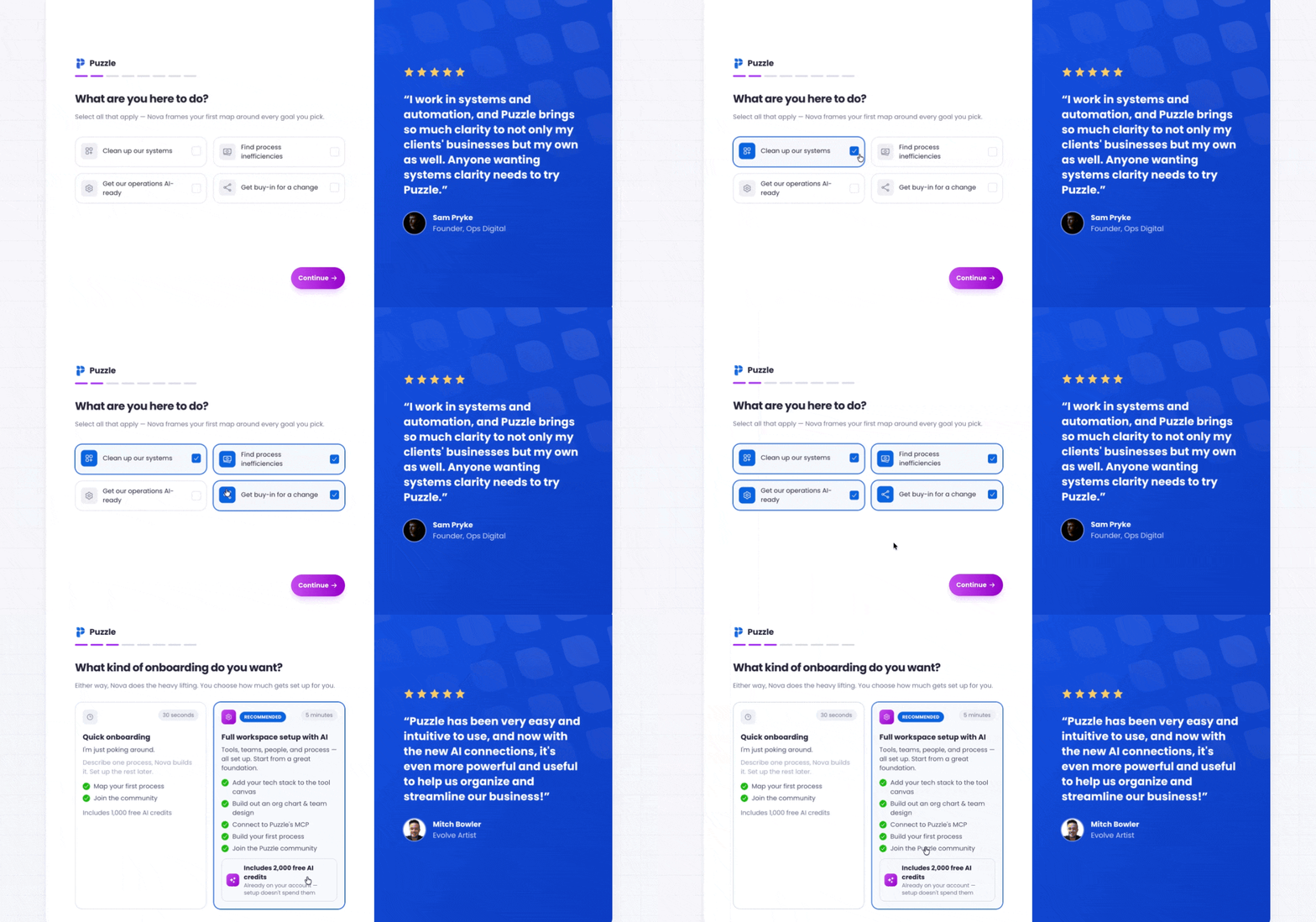
Once your account is created, Puzzle asks a simple question: What are you here to do? Select every option that applies. Nova uses your answers to frame your first process map around the goals you pick.
Your options:
🎯 Clean up our systems
🔍 Find process inefficiencies
🤖 Get our operations AI-ready
🤝 Get buy-in for a change
You can select one, a few, or all four. Click Continue when you're ready.
3️⃣ Choose Your Onboarding Path
3️⃣ Choose Your Onboarding Path
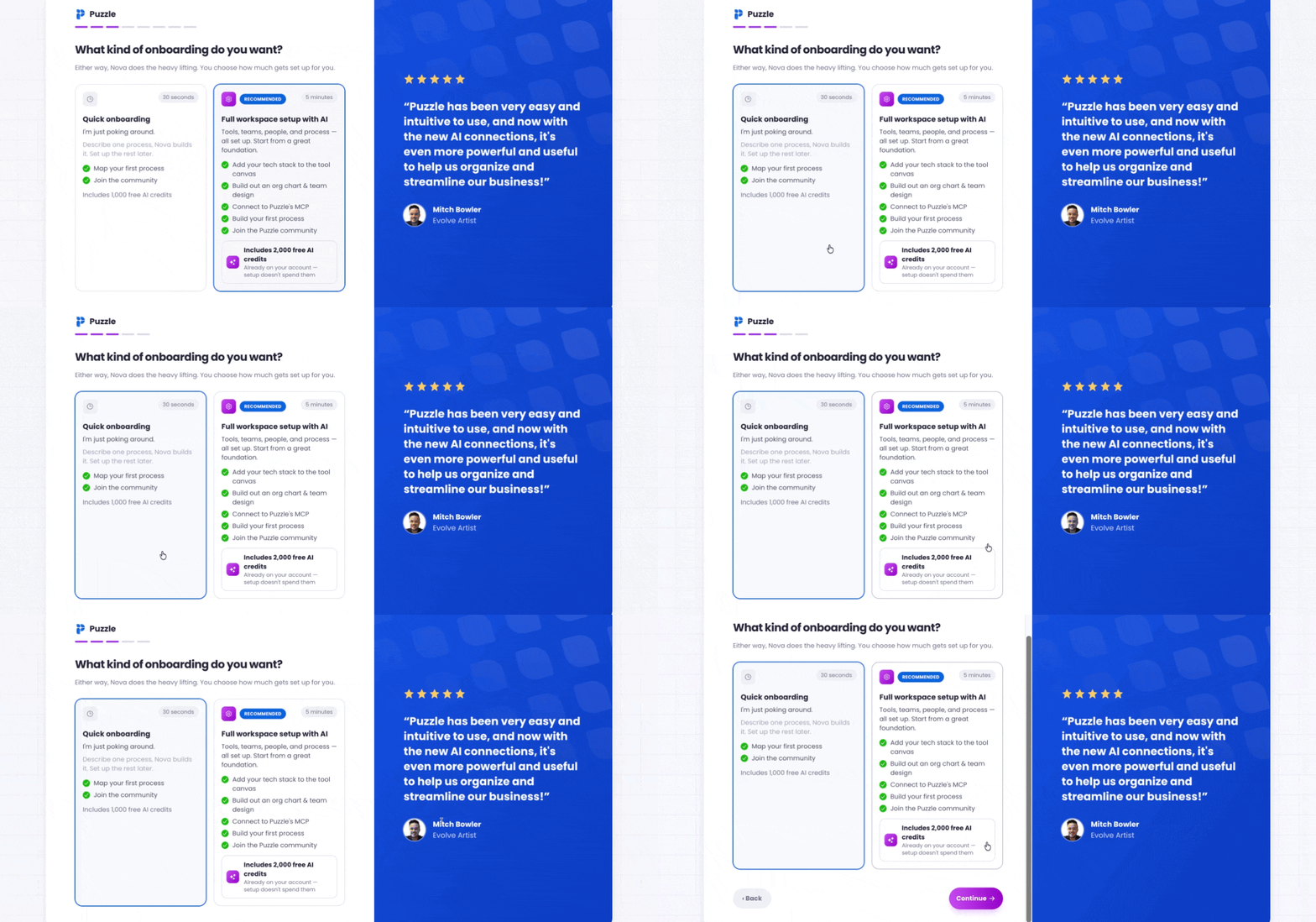
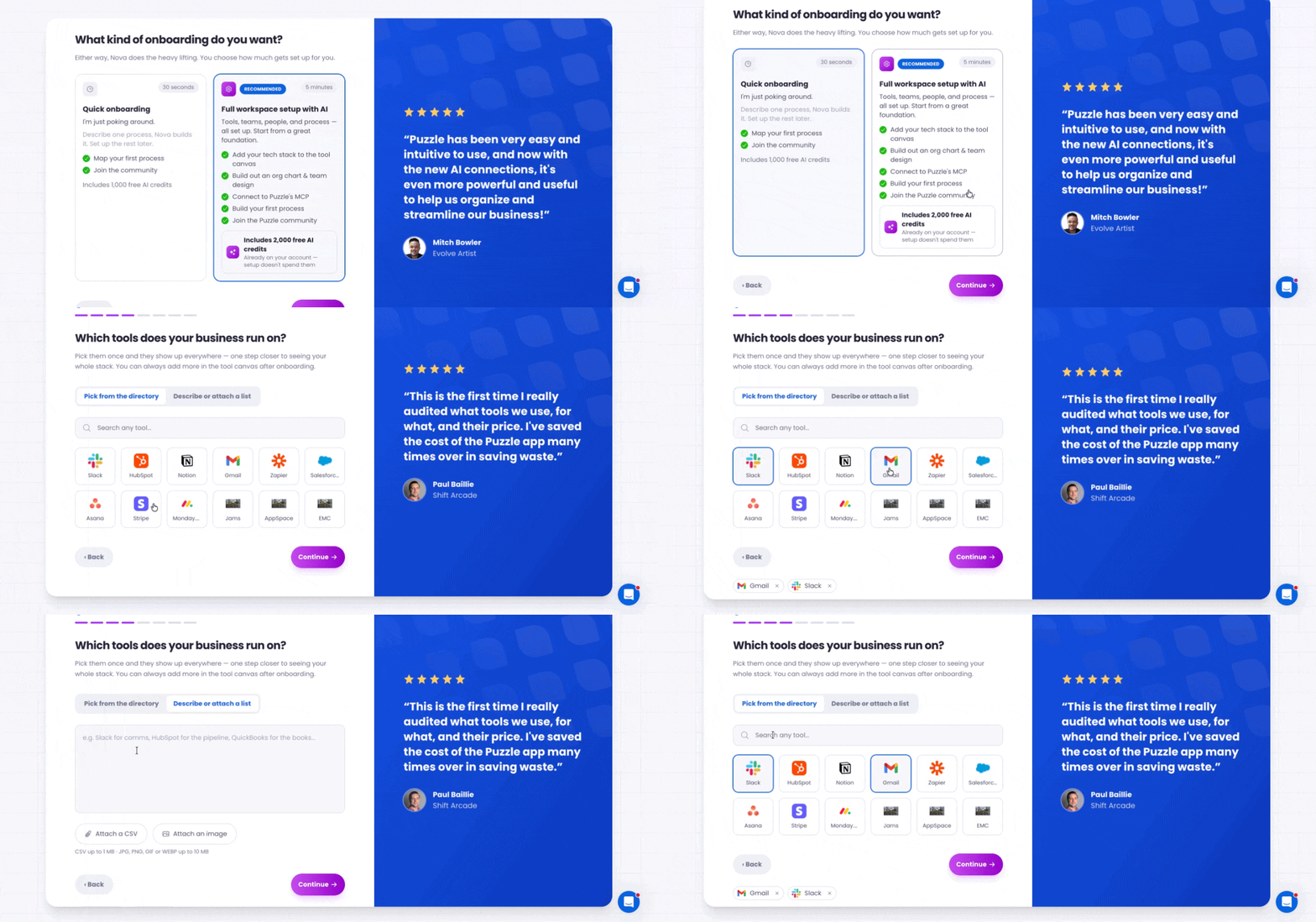
Next, pick how much you want set up on day one:
⚡ Quick Onboarding (about 30 seconds)
Perfect if you're just poking around. Describe one process, and Nova builds it. Set up the rest of your workspace later.
Map your first process
Includes 1,000 free AI credits
🚀 Full Workspace Setup with AI (Recommended, about 5 minutes)
Tools, teams, people, and process — all set up. Start from a foundation Nova helps you build.
Add your tech stack to the tool canvas
Build out an org chart & team design
Connect to Puzzle's MCP
Build your first process
Join the Puzzle community
Includes 2,000 free AI credits, issued after onboarding
➡️ If you chose Quick Onboarding, continue to Step 4.
➡️ If you chose Full Workspace Setup with AI, skip to Step 5.
4️⃣ Quick Onboarding Walkthrough
4️⃣ Quick Onboarding Walkthrough
If you chose Quick Onboarding, you're two screens away from your workspace.
1️⃣ Map Your First Process
1️⃣ Map Your First Process
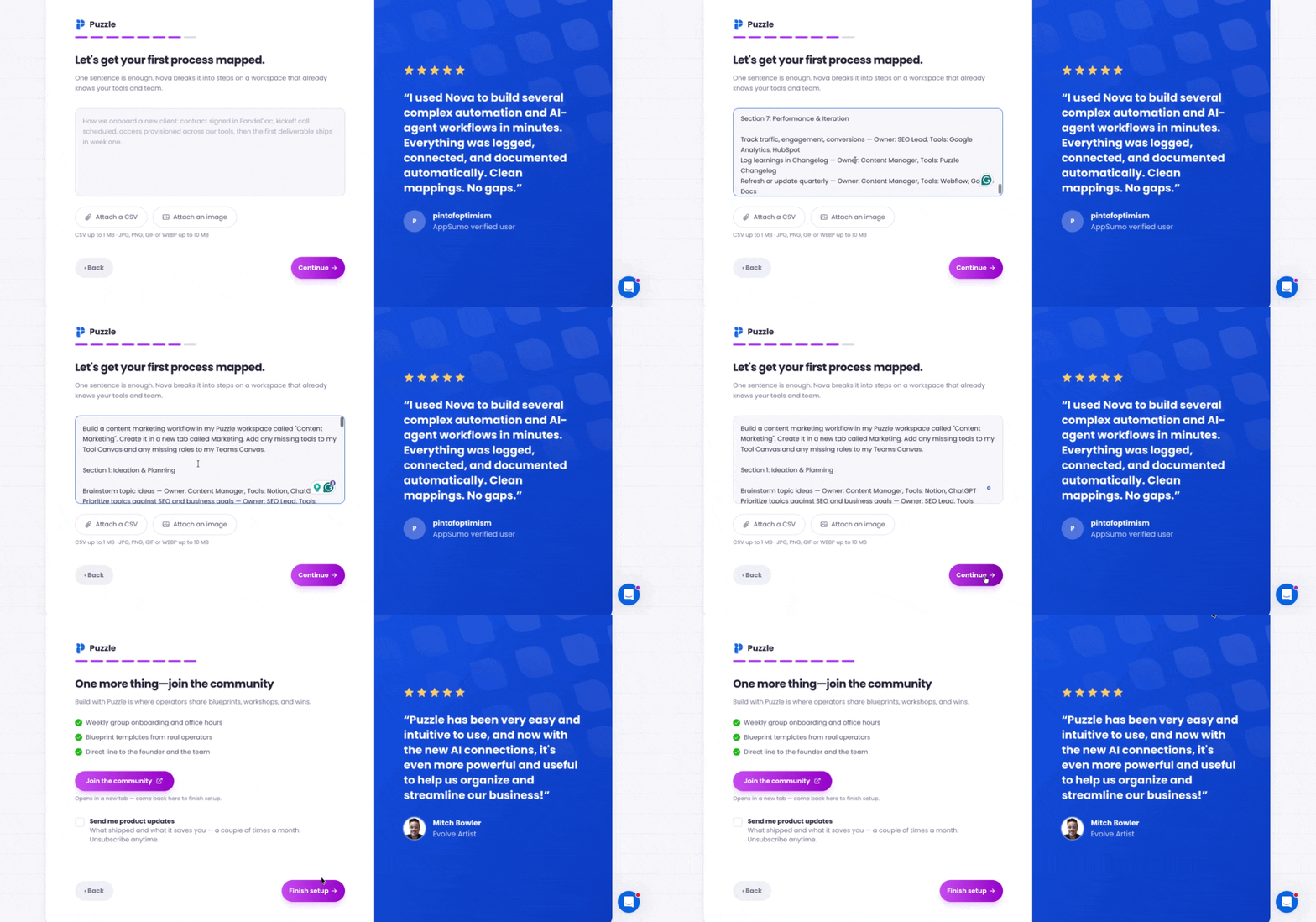
Nova needs a starting point. Describe one process in a single sentence — how you onboard a client, run a weekly review, close a deal, whatever's top of mind.
Type your process description in the text field
Optionally attach an SOP (PDF, doc, or export) to give Nova more context
Click Continue
The moment you click Continue, Puzzle creates your organization and workspace behind the scenes and sends your process to Nova to start building.
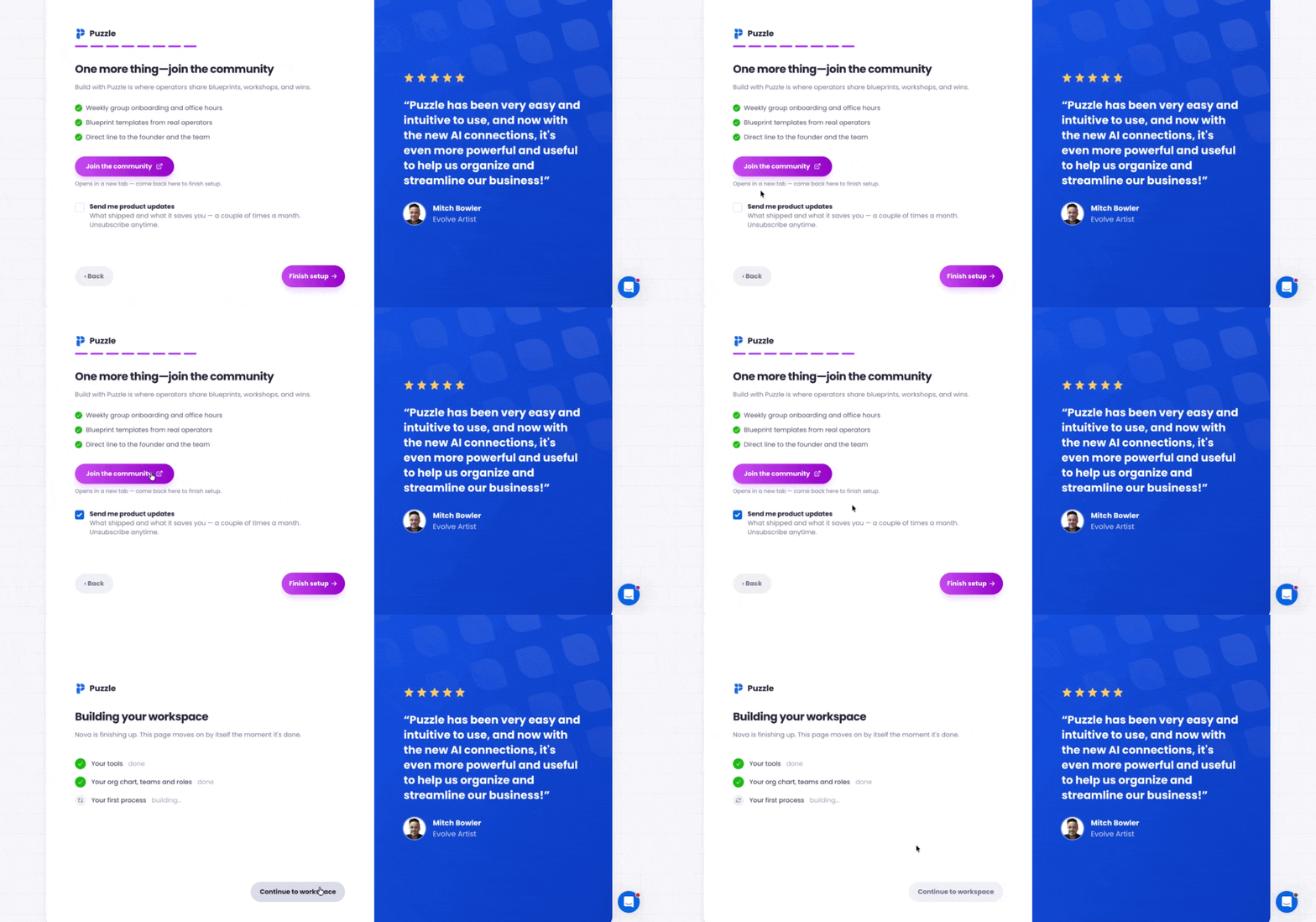
2️⃣ Join the Community and Finish Setup
2️⃣ Join the Community and Finish Setup
Puzzle wraps up onboarding with one more screen.
Click Join the community to open the Puzzle Circle community in a new tab (weekly group onboarding, blueprint templates, direct line to the founder and team)
Check Send me product updates if you want a couple of updates a month on what shipped
Click Finish setup
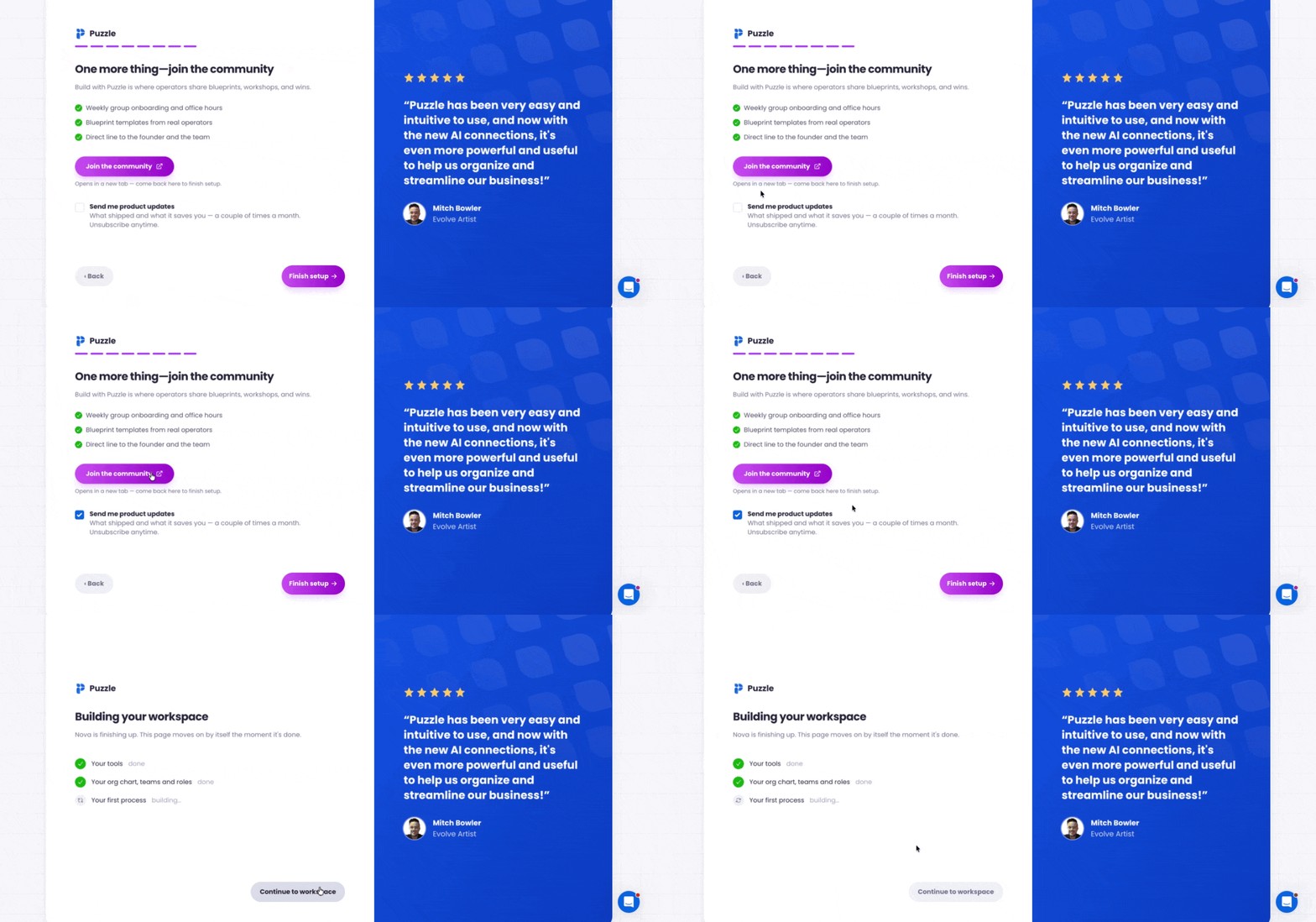
Nova finishes building your workspace (in about 10 seconds) and drops you straight into the workflow canvas, with your first process mapped.
➡️ Skip Step 5 and head to Step 6: What Happens After Setup.
5️⃣ Full Workspace Setup with AI Walkthrough
5️⃣ Full Workspace Setup with AI Walkthrough
If you choose Full Workspace Setup with AI, you'll walk through five setup screens before landing in your workspace.
1️⃣ Which Tools Does Your Business Run On?
1️⃣ Which Tools Does Your Business Run On?
Add your tech stack so Puzzle can build out your Tool Canvas from the start. Two ways to add tools:
Option A: Pick from the directory
Search or click any tool tile (Slack, HubSpot, QuickBooks, Notion, Gmail, Zapier, Salesforce, and more)
See your selection count at the bottom
Click Continue
Option B: Describe or attach a list
Toggle to Describe or attach a .csv file
Type a description of your stack, or click Attach a file to upload a tool list (.xls, .xlsx, .doc, or .docx)
Click Continue
💡 Can't find a tool? No problem. You can add it as a custom tool once you finish onboarding.
2️⃣ How Are Your Departments Organized?
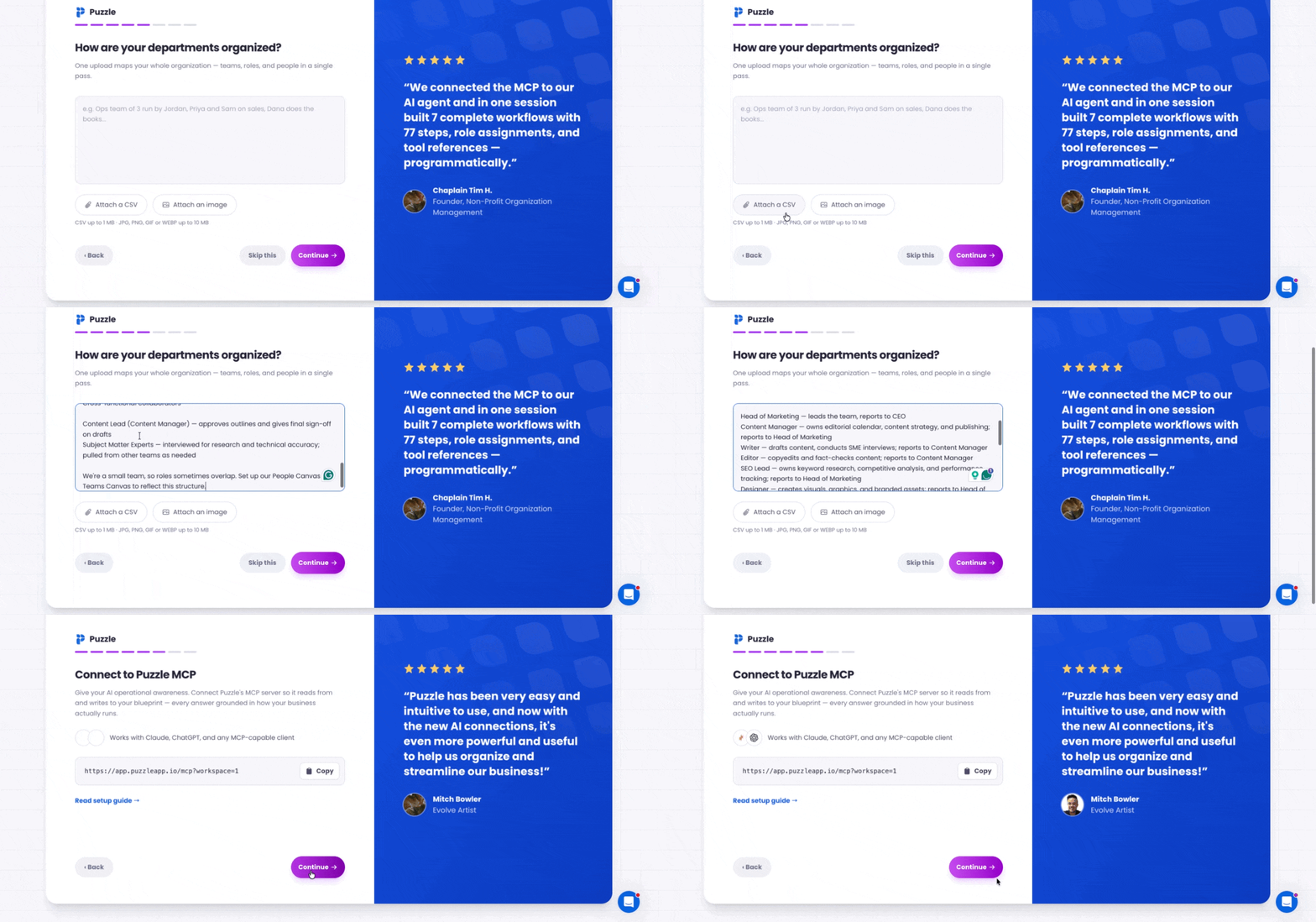
2️⃣ How Are Your Departments Organized?
Give Nova a picture of your team structure to build out your Teams Canvas and People Canvas.
Type a description of your org (departments, roles, reporting lines)
Or attach a file (org chart, roster, .xls, .xlsx, .doc, or .docx)
Click Continue
Nova starts building your Teams and People Canvases in the background.
3️⃣ Connect to Puzzle MCP
3️⃣ Connect to Puzzle MCP
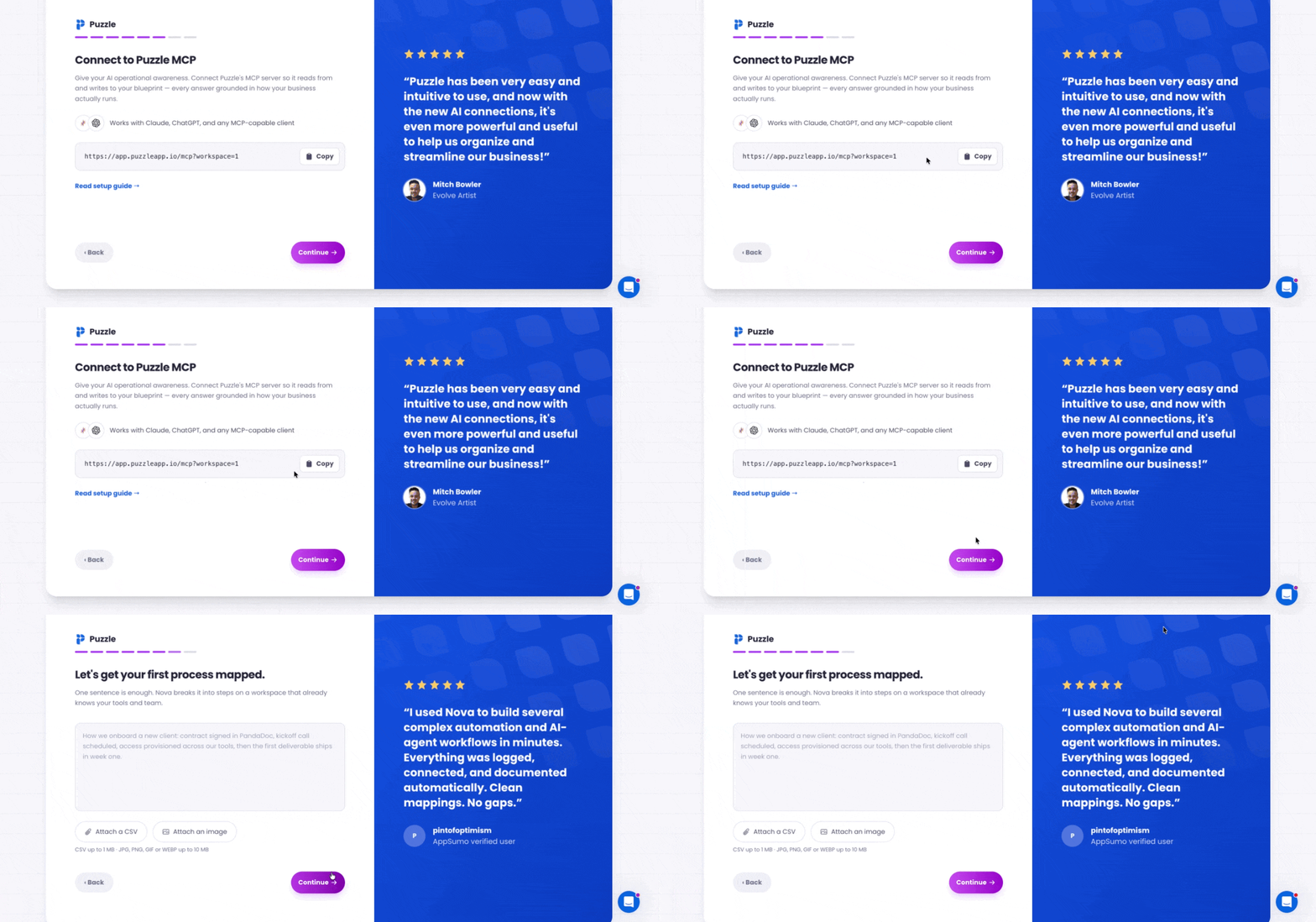
Give your AI operational awareness. Connect Puzzle's MCP server so Claude, ChatGPT, or any MCP-capable client can read from and write to your workspace.
Copy your MCP URL: https://app.puzzleapp.io/mcp?workspace=1
📝 You can update the value after the '?' with a more specific parameter if you choose, so long as it has no spaces.
Head to Claude (or your preferred MCP client) and set up a custom connector
Click Continue to move on
Not ready? Click Skip for now and set it up later
📚 Read the Puzzle MCP setup guide for step-by-step connection instructions.
4️⃣ Map Your First Process
4️⃣ Map Your First Process
Same screen as Quick Onboarding, but Nova now has your tools and team context to work with.
Type your process description in one sentence
Optionally attach an SOP
Click Continue
Nova breaks your process into steps on a workspace that already knows your tools and team.
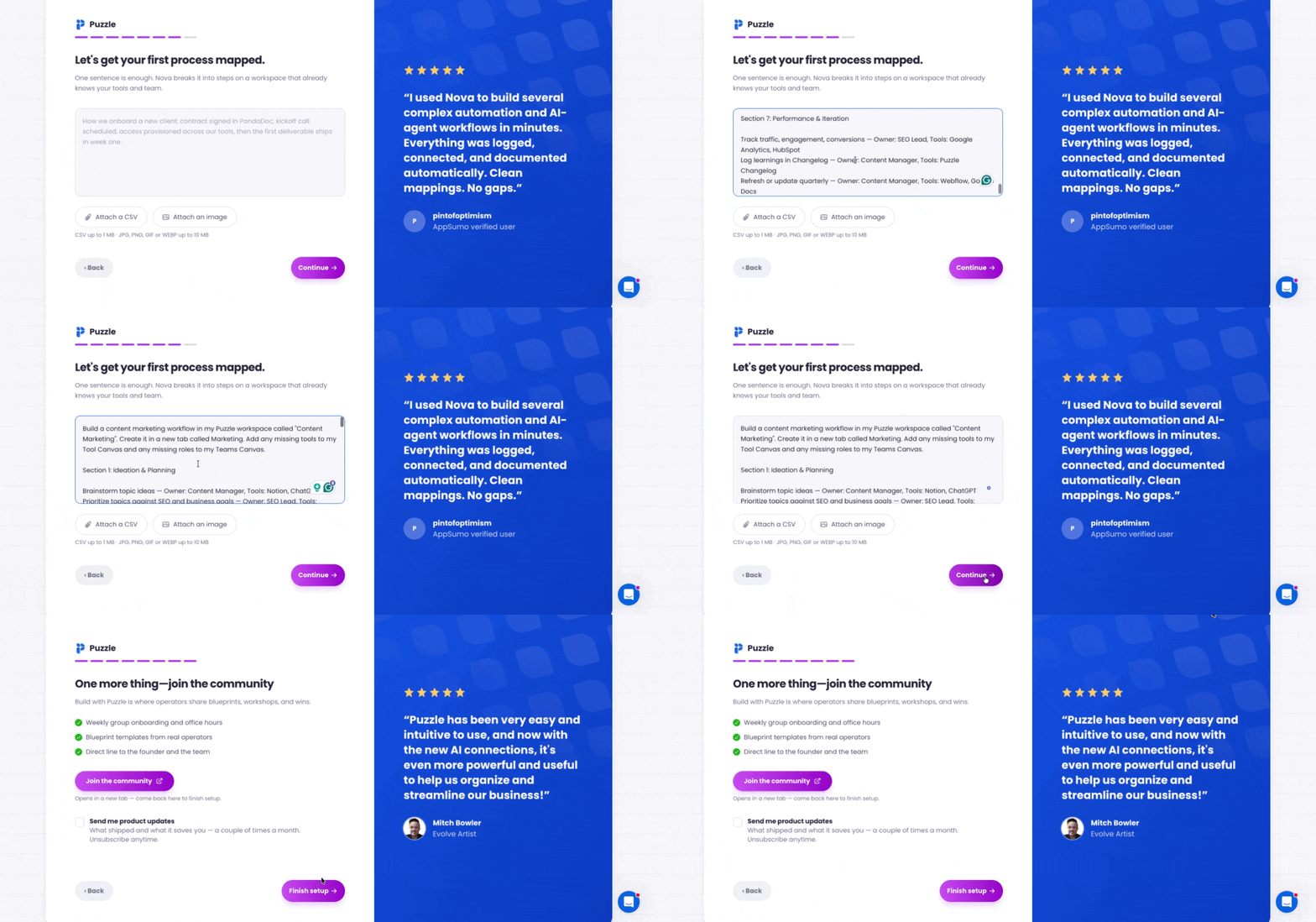
5️⃣ Join the Community and Finish Setup
5️⃣ Join the Community and Finish Setup
Click Join the community to open the Puzzle Circle community in a new tab
Check Send me product updates if you want product feature launches sent directly to your email inbox
Click Finish setup
Nova finishes building your workspace and drops you into the workflow canvas.
6️⃣ What Happens After Setup
6️⃣ What Happens After Setup
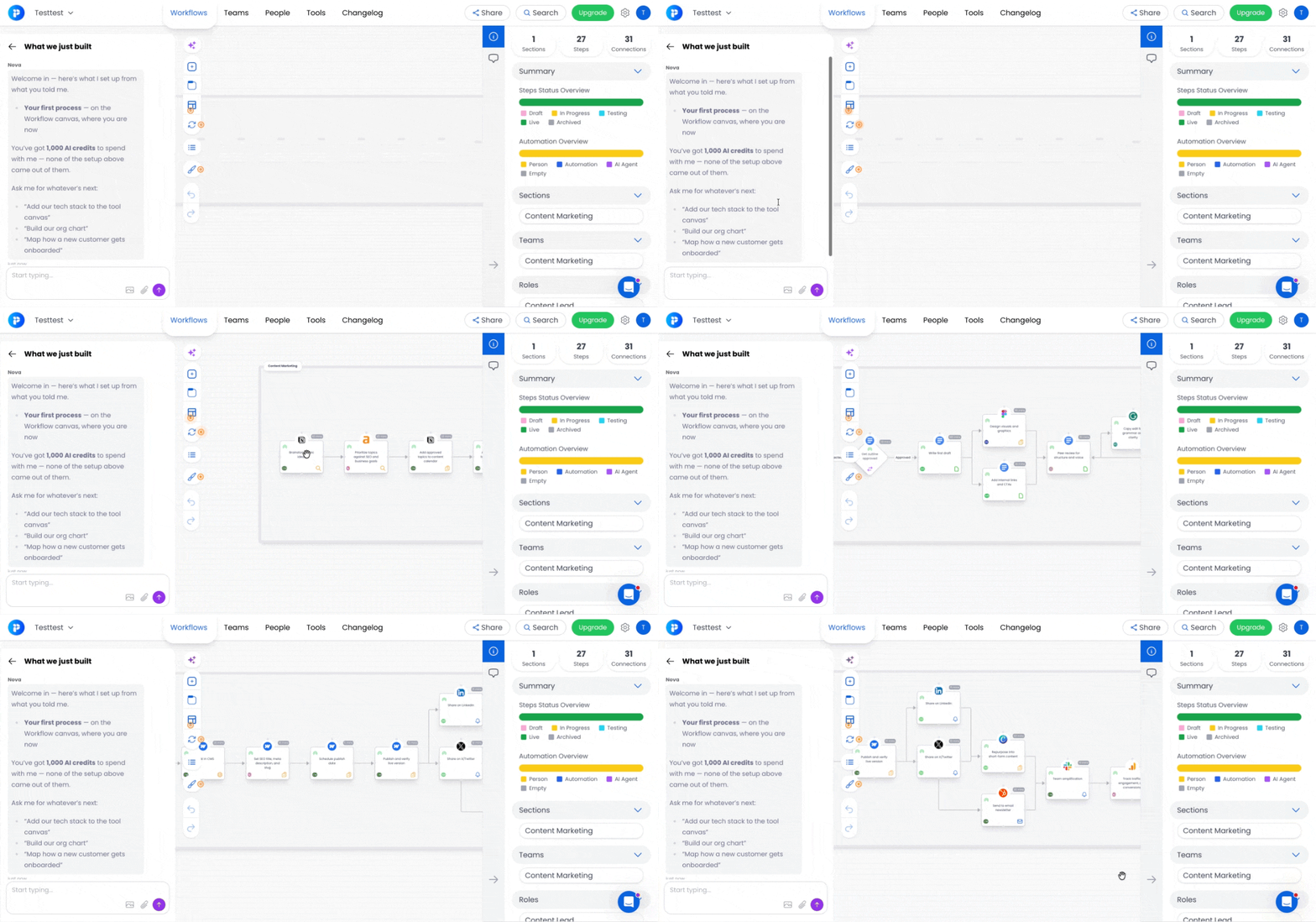
Once Nova finishes building, you land straight in the workflow canvas with everything ready to explore.
What you'll see:
🗂️ First process on the canvas — mapped as steps under a named tab
🤖 Nova sidebar open with a summary of what was built
📊 Right sidebar populated — sections, steps, connections, teams, and tool groups (Full Setup path)
💬 Starter Nova conversation saved so you can pick up where onboarding left off
🎁 Free AI credits allotted to your account (1,000 for Quick, 2,000 for Full)
Your account starts on the Starter plan by default. Upgrade to Builder, Optimizer, or Enterprise from Organization Billing section whenever you're ready.
💡 Tips for a Better Onboarding Experience
🧠 Give Nova useful context: The more useful information you provide about your business, tools, teams, and processes, the more useful your starting workspace can be.
📝 Don't worry about perfect formatting: Describe your processes naturally. If you already have an SOP or other documentation, attach it and let Nova work from it.
🛤️ Pick the right onboarding path: Want to get started quickly? Choose Quick Onboarding. Want Nova to help establish more of your workspace? Choose Full Workspace Setup with AI.
🏗️ Keep building after onboarding
Your onboarding workspace is a starting point—not the finish line. Continue adding tools, people, teams, workflows, and other information as your Puzzle workspace grows.
Conclusion
Puzzle onboarding is designed to help you get to value faster. Instead of spending your first hour building everything from scratch, give Nova the context it needs and let it start building the foundation of your workspace while you move through setup.
Choose the path that fits your goals, tell Puzzle what you're here to accomplish, and watch your workspace take shape. Create your account, choose your onboarding path, and let Nova turn your business context into a workspace ready to grow with you from day one.
Still need help? Ask the team