Puzzle MCP
Connect your workflows, systems, and teams directly to AI, so your agents understand how your business actually runs.
Written By Jolly Amurao
Last updated About 5 hours ago
AI is only as powerful as the context it has access to. Without it, even the most advanced models fall back on assumptions instead of understanding how your business actually operates.
Puzzle MCP (Model Context Protocol) brings real operational context into every AI interaction.
By connecting Puzzle to tools like Claude and ChatGPT, your full operational blueprint becomes available to your AI. This includes your processes, teams, tools, and data models. Instead of working in isolation, your AI can now understand how work flows across your organization, who owns each step, what systems are involved, and how everything connects.
This shifts AI from a generic assistant to an operational partner. One that can answer questions, trace workflows, and support decisions based on how your business truly runs.
What is Puzzle MCP?
Puzzle MCP (Model Context Protocol) connects your operational blueprint in Puzzle to AI tools like Claude and ChatGPT.
Once connected, your AI can read and understand how your business operates across processes, teams, tools, and data models. Instead of working from generic knowledge, your AI works from the same system your team uses to design and manage operations.
This allows your AI to answer detailed questions, trace workflows across systems, and support improvements based on how your organization is actually structured.
🔑 Key advantage: Your operational blueprint becomes a shared source of truth between humans and AI.
How Puzzle MCP Works
Puzzle MCP connects your operational blueprint to AI tools so your agents can read, understand, and interact with your operations.
Here’s how it works:
🔗 Connect Puzzle to your AI tool: Add Puzzle as a connector using a secure MCP URL and authorize your account.
📖 Your AI reads your blueprint: Processes, teams, tools, and data models become accessible inside your AI conversations.
💬 Ask questions and analyze workflows: Your AI can explain how processes work, trace dependencies, and understand how everything connects.
✍️ Propose and document changes: Your AI can suggest updates and write changes back to Puzzle, keeping your blueprint current.
🗂️ Work across tabs: Your AI can access and organize workflows across different tabs, helping you place processes exactly where they belong.
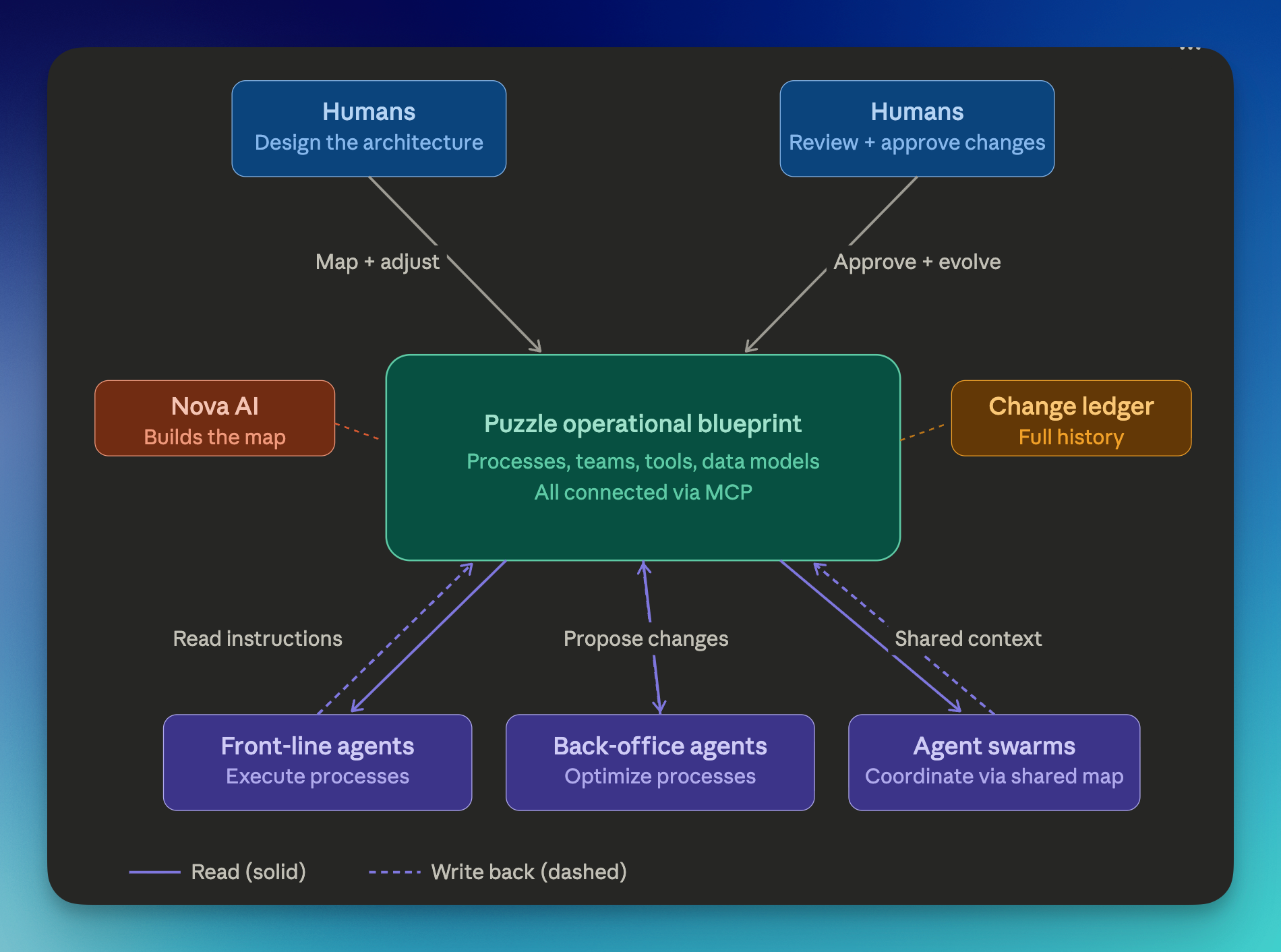
Puzzle MCP Architecture
Your operational blueprint acts as the shared system between humans and AI. Humans design and refine workflows in Puzzle, while AI agents read that context, support execution, and help improve processes over time.
What Your AI Can Do with Puzzle MCP
Examples & Usage
Common Use Cases
Advanced Use Cases
🔌 How to Connect Puzzle MCP to Claude
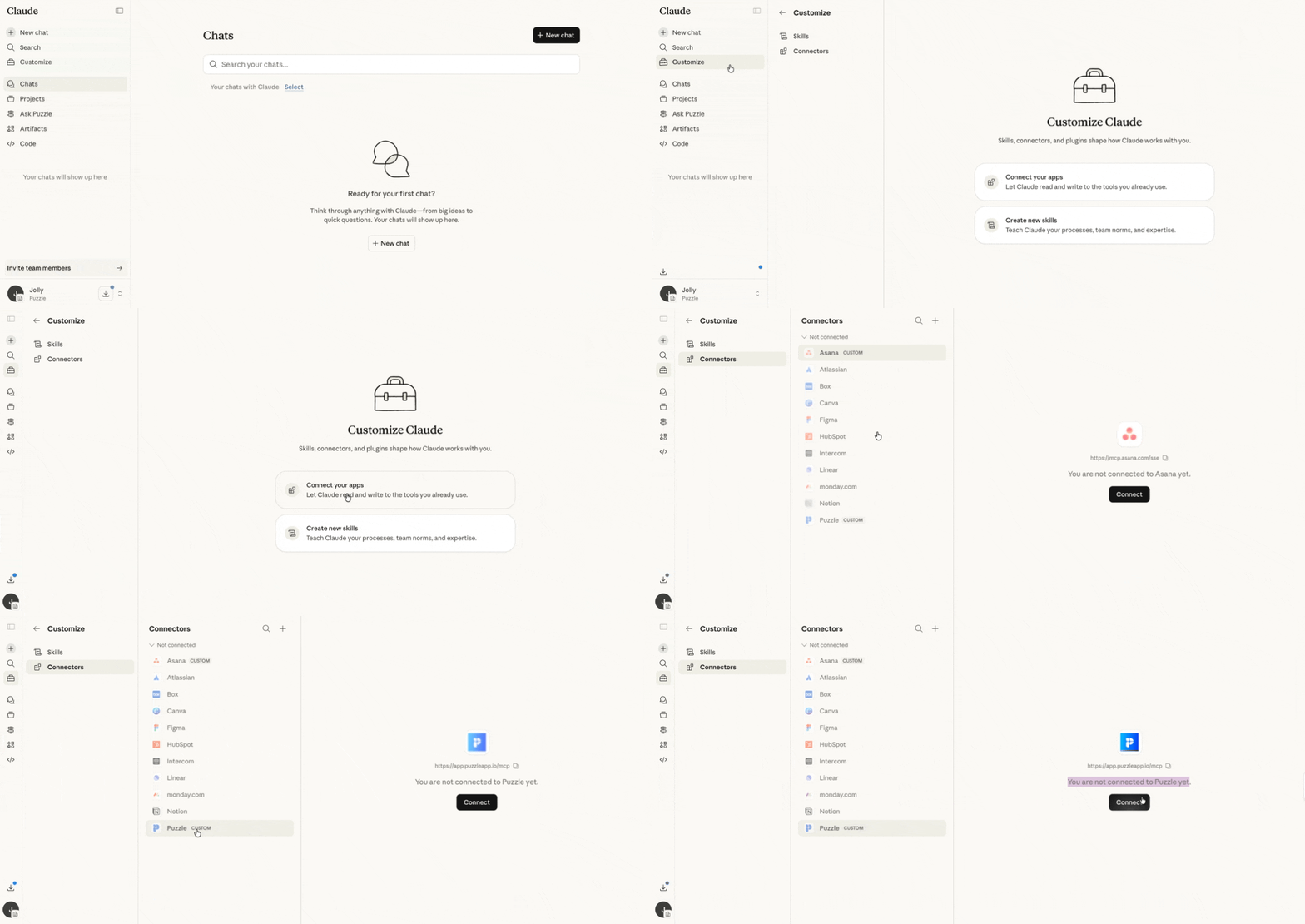
You can connect Puzzle to Claude using a custom MCP connector.
1️⃣ Step 1: Get your Puzzle MCP URL
1️⃣ Step 1: Get your Puzzle MCP URL
Copy your custom MCP connector URL below:
https://app.puzzleapp.io/mcp 2️⃣ Step 2: Add Puzzle to Claude
2️⃣ Step 2: Add Puzzle to Claude
Open Claude
Go to Customize → Connectors
Click Add Custom Connector
Paste your Puzzle MCP URL
Name it “Puzzle"
3️⃣ Step 3: Authenticate & Allow Tools Permissions
3️⃣ Step 3: Authenticate & Allow Tools Permissions
You’ll be prompted to log in to Puzzle
At this stage, Puzzle will ask which workspace you want to connect. Select the appropriate workspace for this connector and click Authorize Access.
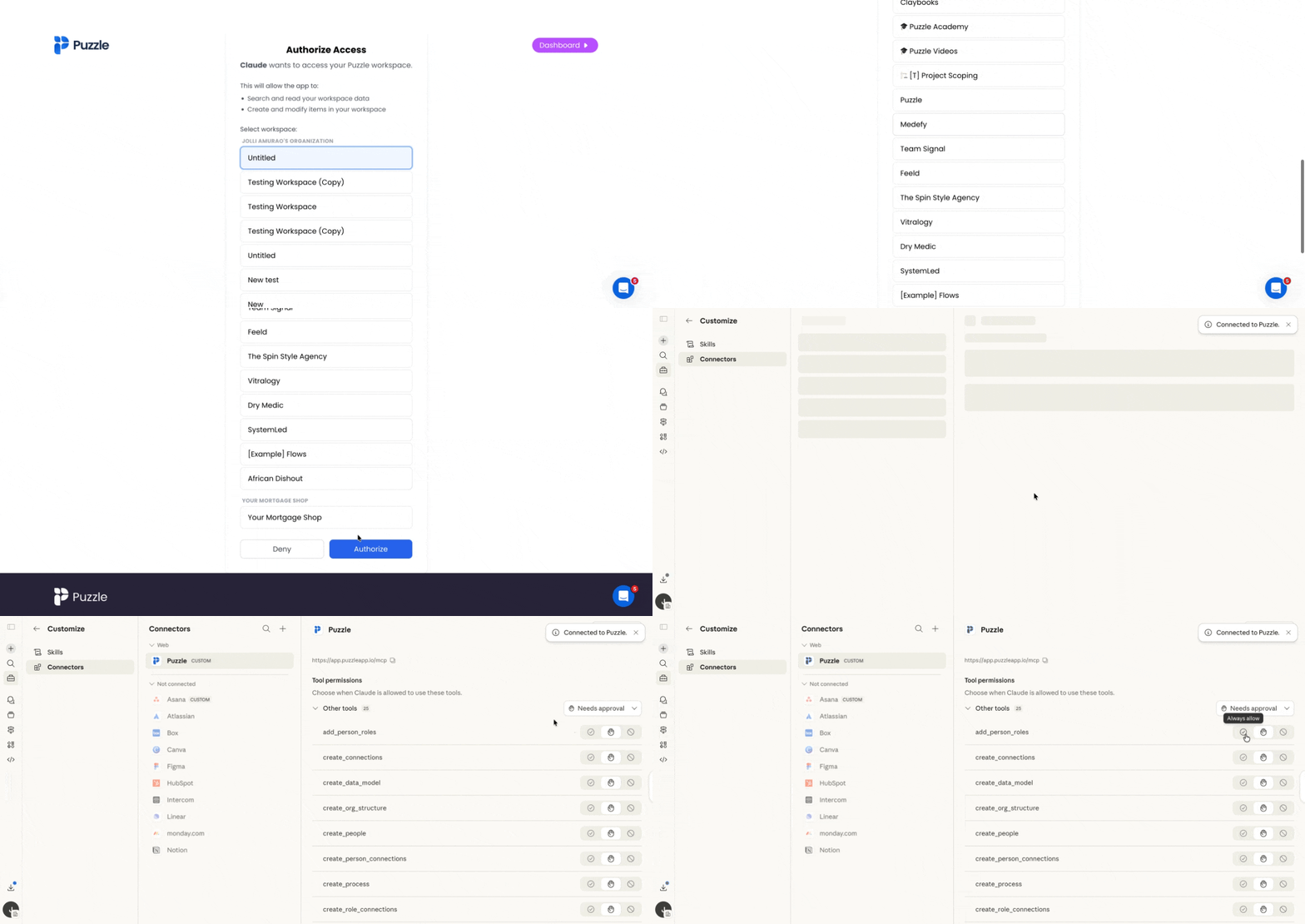
Then you'll also be able to choose when Claude can use Puzzle tools by configuring the Tools Permissions.
Read-only tools (like viewing workflows or data) can be set to Always allow
Write or update tools (like creating or editing) can be set to Needs approval
This gives you control over how much access Claude has to your workflows.
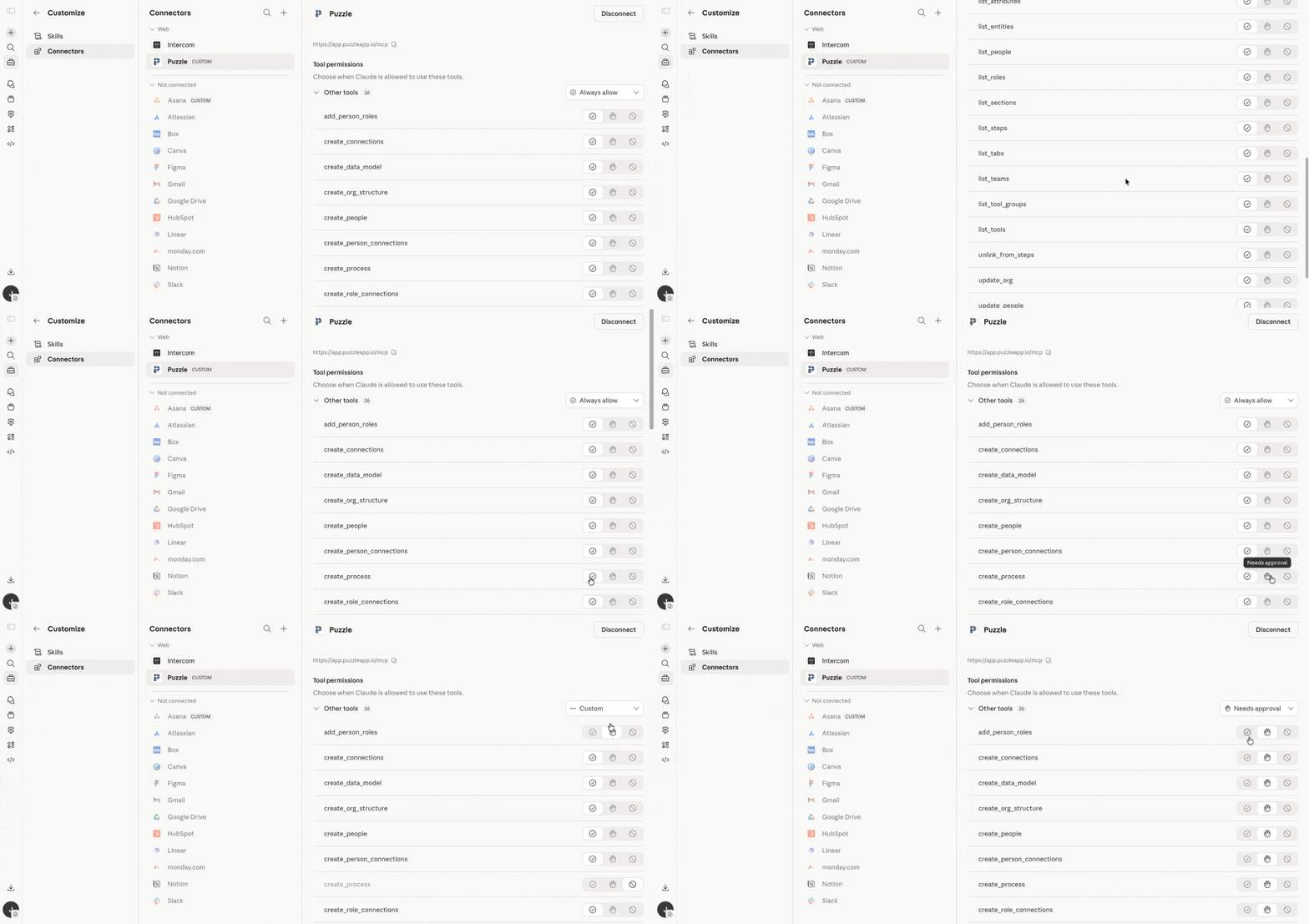
Once connected, your AI can begin reading and writing to your operational blueprint.
🔌 How to Connect Puzzle MCP to ChatGPT
Connect Puzzle to ChatGPT using a custom app in Developer Mode.
1️⃣ Step 1: Get your Puzzle MCP URL
1️⃣ Step 1: Get your Puzzle MCP URL
🔗 Use the same MCP connector URL you'd use for Claude.
https://app.puzzleapp.io/mcp
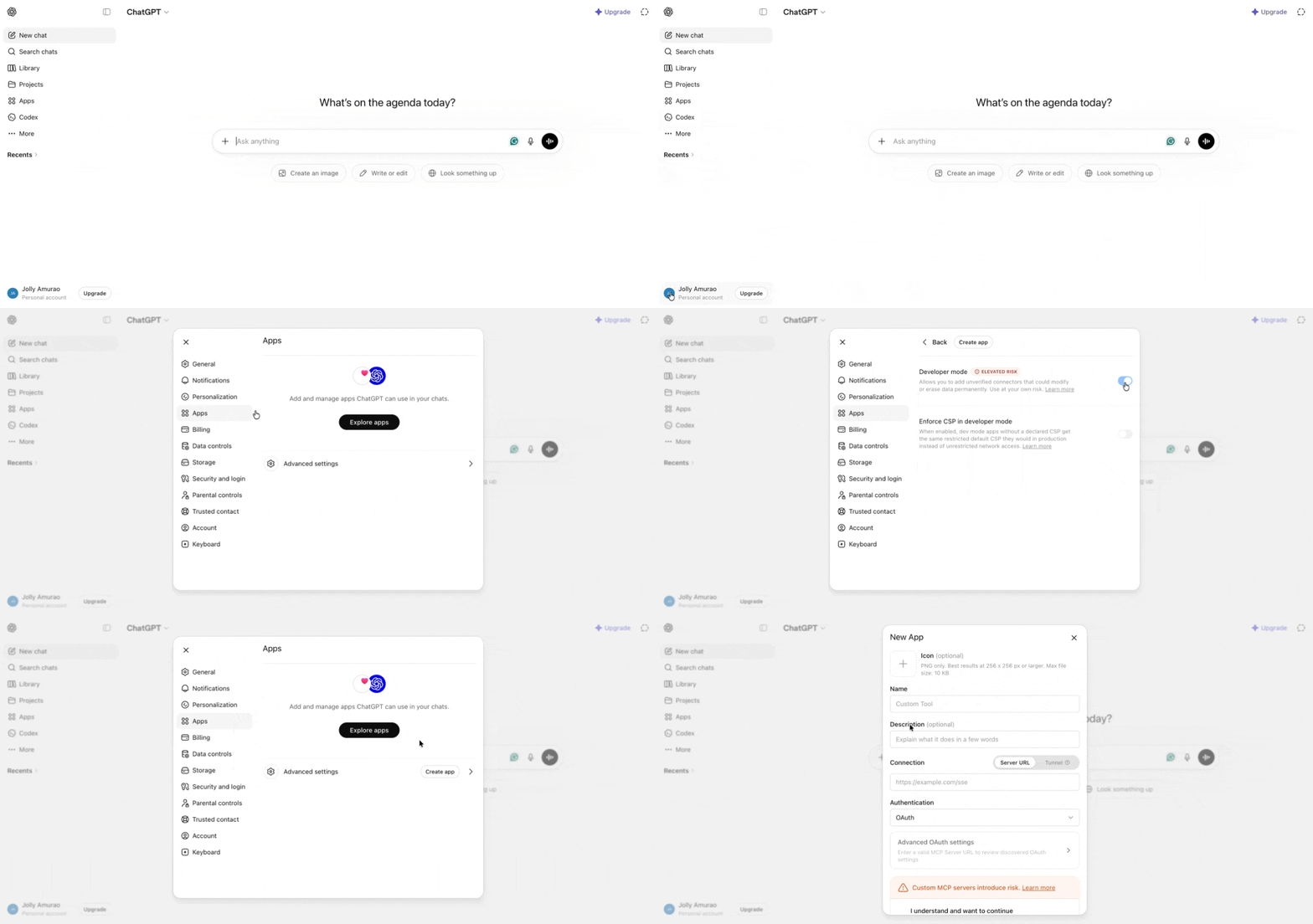
2️⃣ Step 2: Turn on Developer Mode in ChatGPT
2️⃣ Step 2: Turn on Developer Mode in ChatGPT
👤 Open ChatGPT and click your profile icon (top right).
📱 Go to Settings → Apps.
⚙️ On the Apps page, click the settings icon (top right of the Apps panel).
🛠 Open Advanced Settings and toggle on Developer Mode.
➕ Once Developer Mode is on, a Create app button appears.
3️⃣ Step 3: Create the Puzzle Custom App
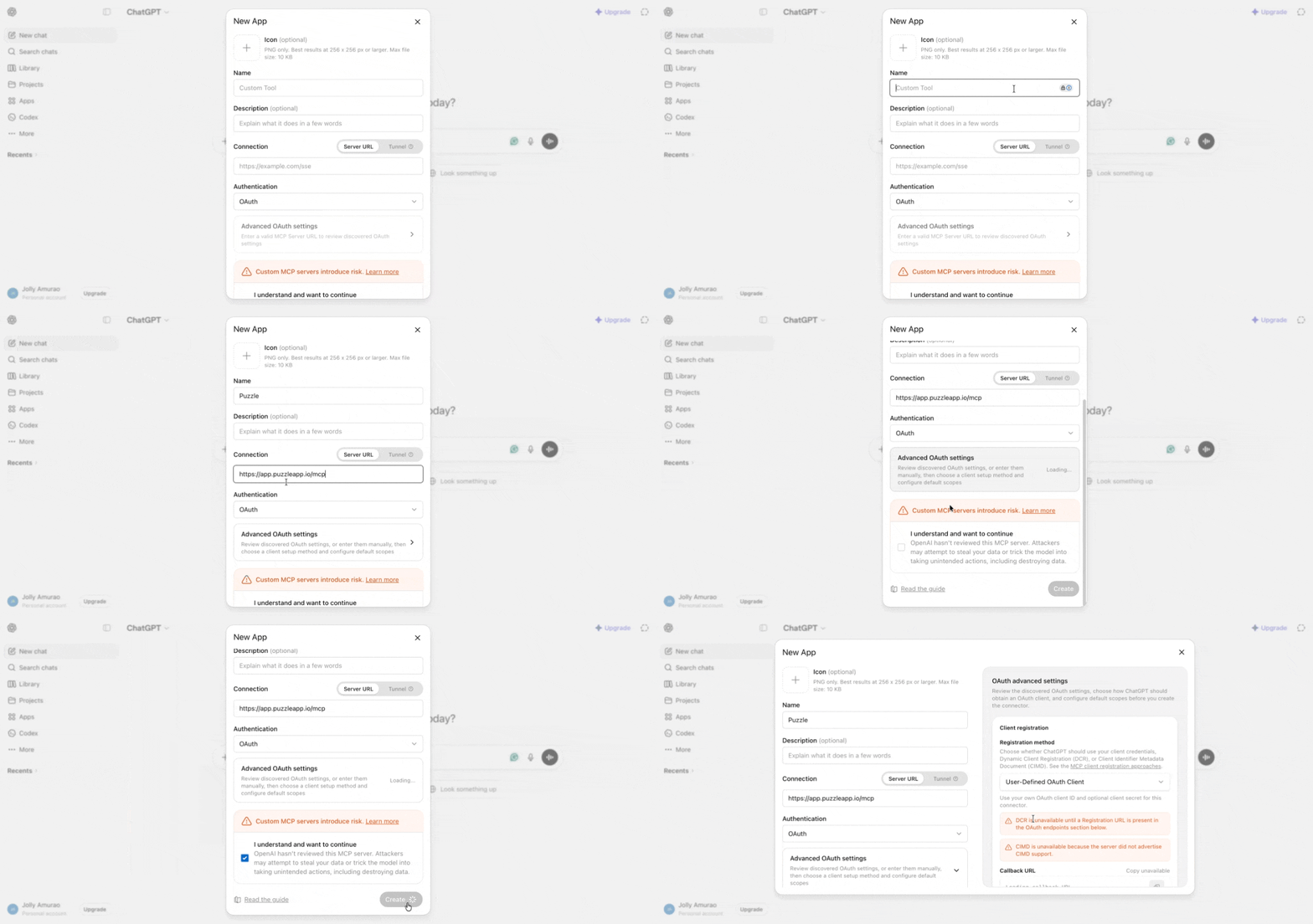
3️⃣ Step 3: Create the Puzzle Custom App
➕ Click Create app.
✏️ Enter a name for the app. We recommend using your Puzzle workspace name so it's easy to identify when you're connecting multiple workspaces.
🔗 Paste your Puzzle MCP URL (from Step 1) into the Connection URL field.
🔐 Click through to authorize. The OAuth flow is the same as the one Claude uses: log in to Puzzle, select the workspace you want to connect, then click Authorize Access.
🏷 Once authorized, the new custom app appears in your enabled apps with a dev tag.
4️⃣ Step 4: Set Tool Permissions
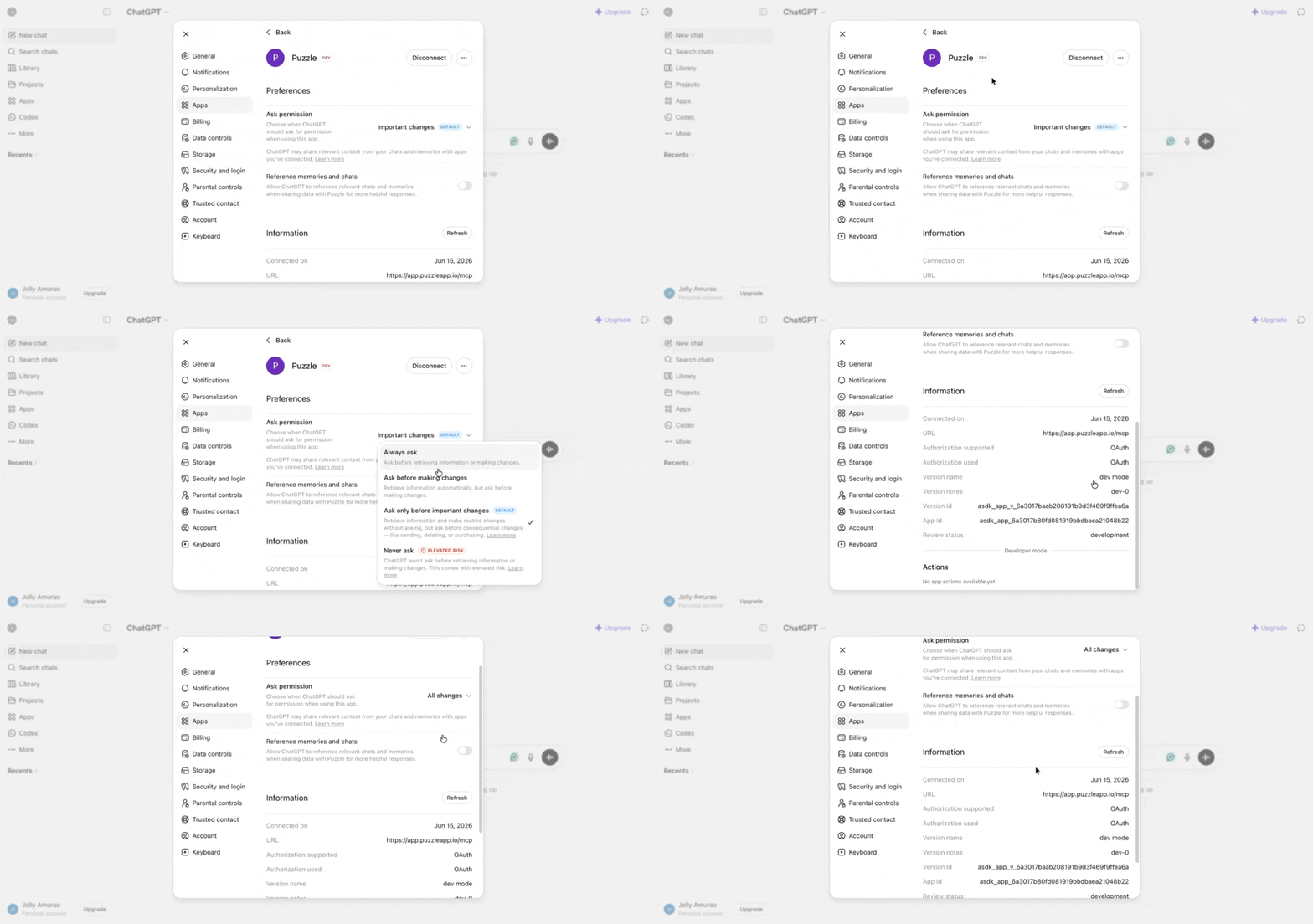
4️⃣ Step 4: Set Tool Permissions
🎛 ChatGPT lets you configure how each app asks for permission. Options:
Always ask
Ask before any change
Ask only before important changes
Never ask
Once connected, ChatGPT can hit every Puzzle MCP endpoint that Claude can. Same capability surface.
🔗 Working Across Multiple Workspaces with MCP
If you do consulting work or manage multiple businesses, you can connect Claude or ChatGPT to more than one Puzzle workspace at the same time. Each workspace gets its own named connector, and your AI knows which one to use based on how you name it.
To add a second (or third) workspace:
🔌 In Claude, go to Customize → Connectors → Add Custom Connector (in ChatGPT, go to Settings → Apps → Create app)
🏷️ Name the connector after the workspace you're connecting (e.g. "Acme Inc." or "Client A")
🔗 Use the Puzzle MCP base URL:
https://app.puzzleapp.io/mcp
➕ Add a
?workspace=nameparameter to the end of the URL so your AI knows which workspace this connector belongs to:
https://app.puzzleapp.io/mcp?workspace=acmeinc
✅ Click Connect and authorize the workspace. Repeat for each additional workspace you want to connect.
Once set up, you can ask your AI questions like "What tools does Acme use most?" and it will automatically route to the right workspace.
🎥 Watch the walkthrough: Connecting Multiple Workspaces →
💡 Tip: Name each connector after the workspace or client it belongs to. This makes it easy to keep track when you are managing several at once.
Frequently Asked Questions
Do I need a complete blueprint before using MCP?
Do I need a complete blueprint before using MCP?
No, but the more complete your blueprint is, the more valuable your AI responses will be. Also you can add information from Claude or ChatGPT into Puzzle, so it works in both directions.
Which AI tools are supported?
Which AI tools are supported?
Puzzle MCP currently supports Claude and ChatGPT, with plans to support additional AI tools that follow the MCP standard.
Can AI update my workflows?
Can AI update my workflows?
AI can propose changes and document updates, helping keep your blueprint accurate over time.
I connected Puzzle MCP but it's not working — what should I check?
I connected Puzzle MCP but it's not working — what should I check?
Make sure you're using the correct MCP URL: https://app.puzzleapp.io/mcp
The email on your Claude or ChatGPT account must match your Puzzle account email exactly.
Try removing the connector in Claude or ChatGPT and re-adding it from scratch.
Check that you authorized the correct Puzzle workspace during setup.
If the issue persists, contact support@puzzleapp.io with a short screen recording of what's happening.
Conclusion
Puzzle MCP turns your operational blueprint into a shared system between humans and AI. Your team designs and evolves processes. Your AI understands, analyzes, and supports them in real time. Every interaction becomes grounded in your actual workflows, not assumptions or disconnected data.
This is a new way of working. One where your processes are not just documented, but actively powering how decisions are made and how work gets done.
Start building your blueprint, connect it to your AI, and experience what it looks like when your entire operation becomes instantly accessible, understandable, and actionable!
Still need help? Ask the team