Shared Views
Create custom shareable links that let anyone view specific parts of your workspace (workflow sections, teams, tool groups, and people) from a single URL, no login required.
Written By Brian Ragone
Last updated About 3 hours ago
Available with any of the following subscriptions, except where noted:🟢 Starter (up to the plan’s step limit) | 🔵 Builder | 🟣 Optimizer |
⚫ Enterprise
Effective collaboration starts with sharing the right information with the right people. Puzzle's Shared Views let you create a secure, read-only view of your workspace that you can share with teammates, client
s, stakeholders, or external collaborators—no Puzzle account required.
Shared Views are no longer limited to workflow sections. You can now build a single shareable view that includes content across multiple canvases, including Workflow sections, Teams, People, and Tool Groups. Whether you're documenting operations, onboarding new team members, or presenting processes to clients, you can create one link that tells the complete story.
This guide walks you through creating, managing, and sharing Shared Views so you can confidently share the exact parts of your workspace your audience needs to see.
Benefits of Using Views
🔗 Share Instantly: Generate a secure link to share your workspace with anyone—no Puzzle account required.
🗂️ Cross-Canvas Sharing: Combine Workflow sections, Teams, People, and Tool Groups into a single shareable view.
🎯 Share Only What's Relevant: Choose exactly which sections, teams, and tool groups to include while optionally displaying your People Canvas.
🤝 Improve Collaboration: Give clients, stakeholders, and teammates the context they need without granting edit access.
💻 Embed Anywhere: Add your Shared View to websites, documentation, Notion, Google Sites, and other internal tools using an iframe.
🔒 Optional Password Protection: Protect sensitive documentation with a password before sharing externally.
Video Guide: Creating Views
Coming soon...
Step-by-Step Guide
1️⃣ Creating and Configuring a New Shared View
1️⃣ Creating and Configuring a New Shared View
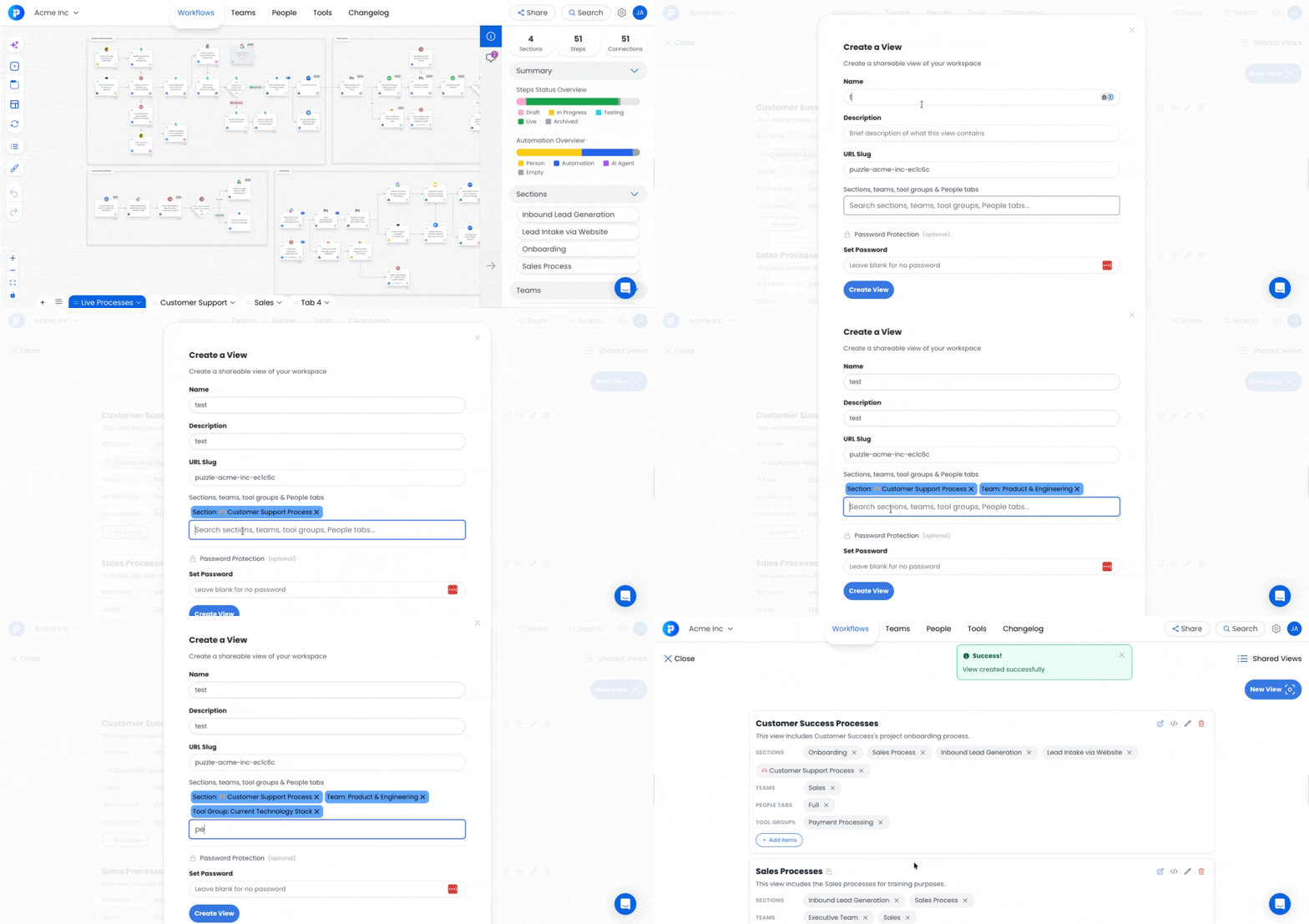
Open the Share button from any canvas and pick the content you want to share.
🎯 On any canvas that supports Shared Views (Workflows, Teams, Tools, People), click the Share button in the top-right corner.
➕ Click New View.
📝 Enter a View Name and confirm the auto-generated Slug.
🎨 Pick the content to include:
Workflow sections from the Workflows Canvas
Teams from the Teams Canvas
Tool groups from the Tools Canvas
People by tab from the People Canvas
Select the specific People Canvas tabs to include everyone in that tab, instead of adding people one by one.
💡 Tip: Organize your People Canvas by tab (e.g., Sales, Ops, Executive Team) so it's fast to bundle the right group into a Shared View.
💾 Save and share the generated link.
2️⃣ Share or Embed the Shared View
2️⃣ Share or Embed the Shared View
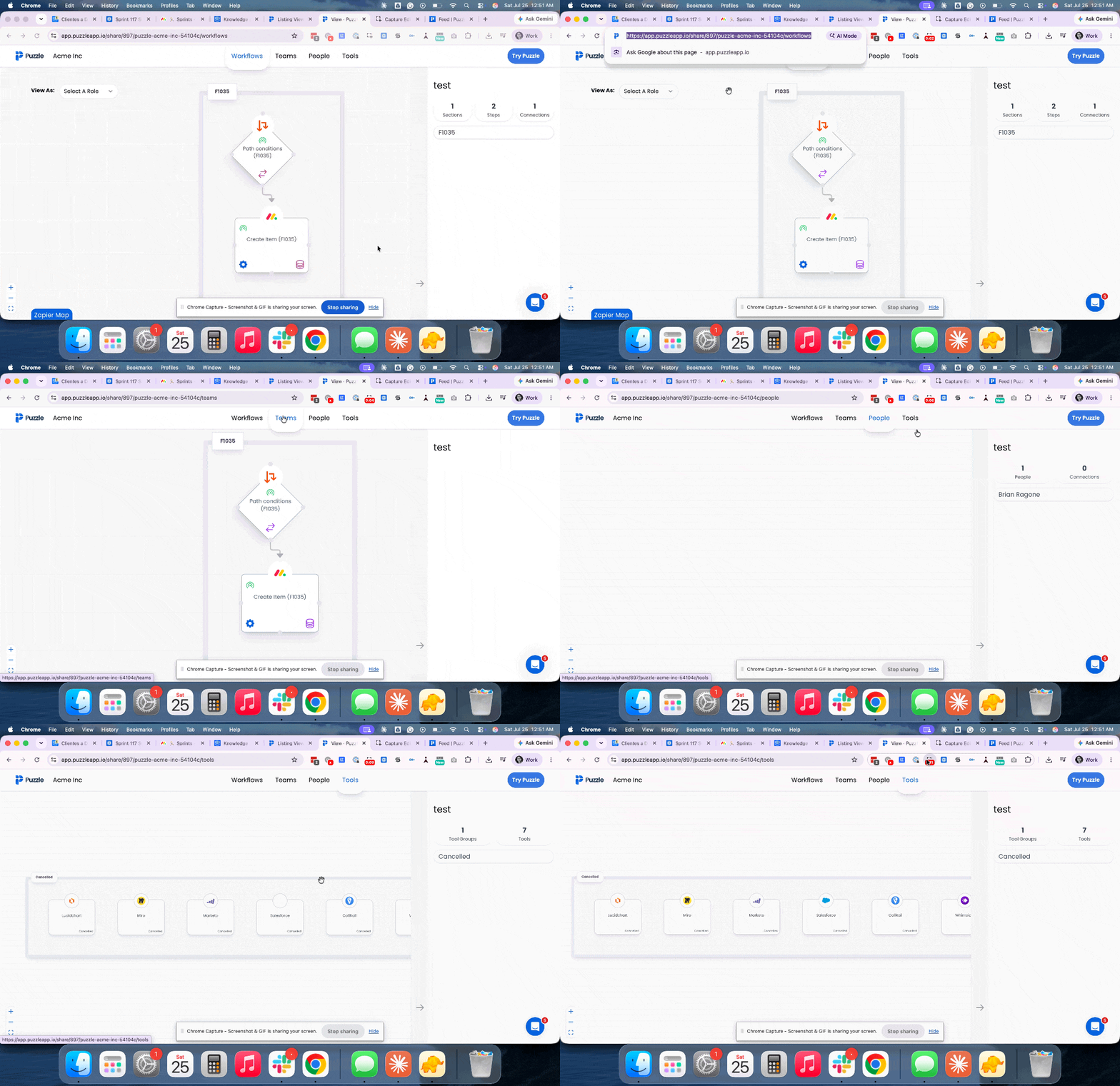
🌐 Preview Your View: Click Visit Share Link to preview and ensure everything looks perfect.
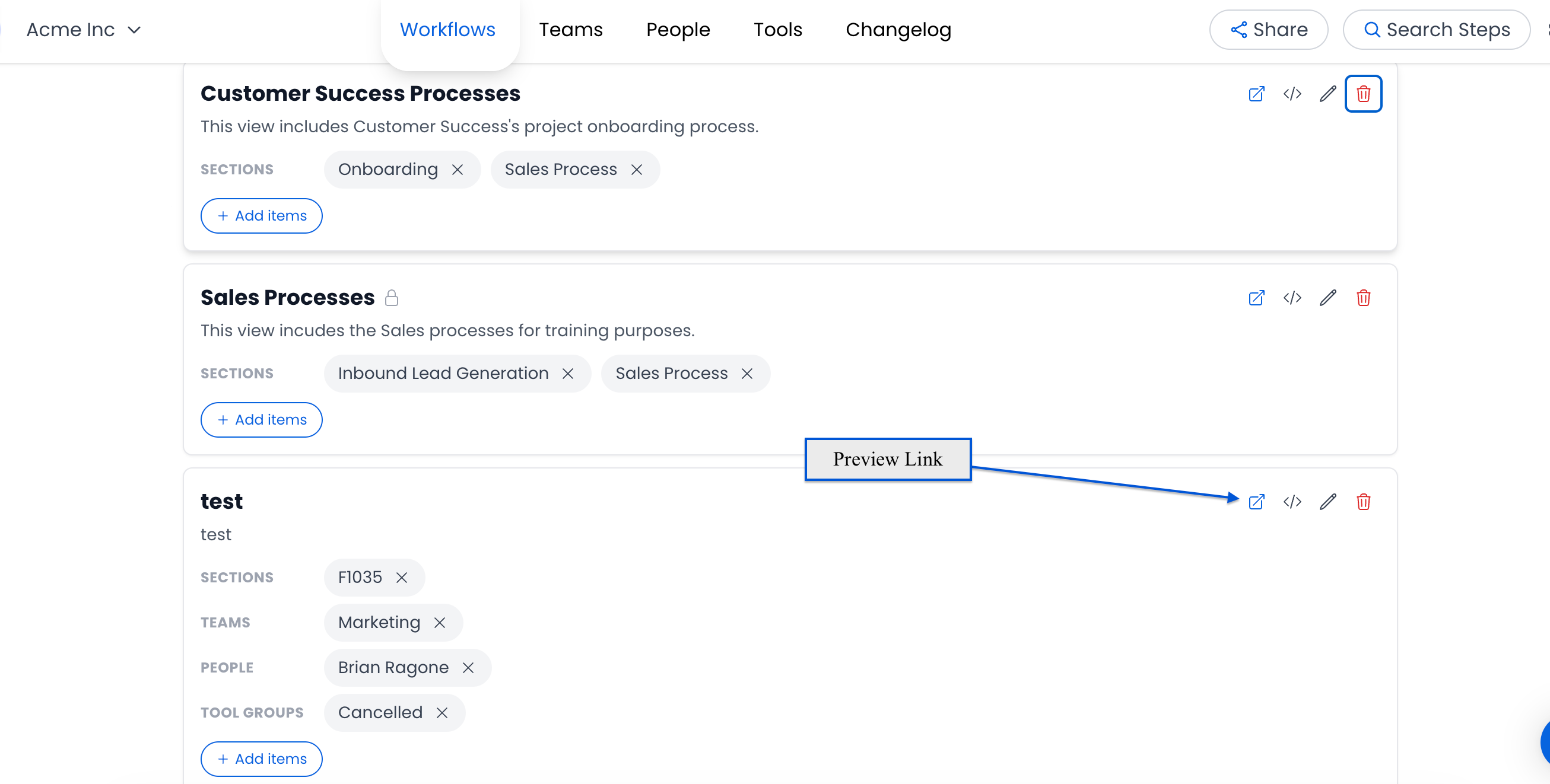
🔗 Copy & Share URL: Share the generated link with stakeholders, team members, or external collaborators. No Puzzle account is required!
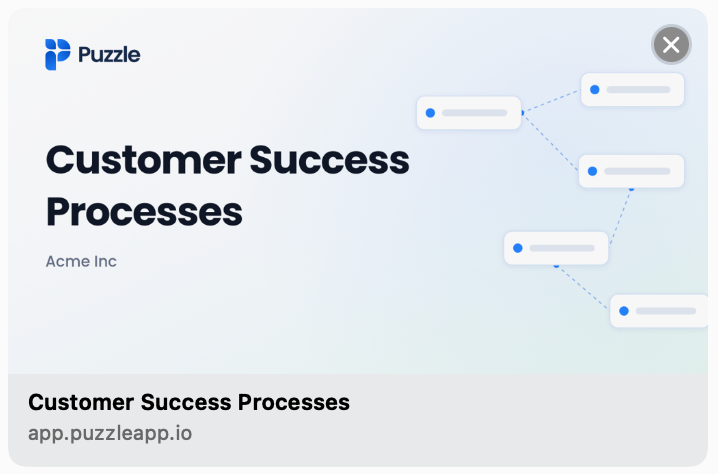
🖼️ Open Graph image: When you paste a Shared View link into Slack, email, Notion, or any tool that unfurls links, it renders a branded preview showing your workspace name, the view title as the main label, the Puzzle logo, and a branded graphic. Recipients see what the link points to before they click.
Sample: https://app.puzzleapp.io/share/897/cs-onboarding
💻 Embed via iFrame: From the same view settings, click </> “Get Embed Code” to generate an iframe snippet. You can paste this code into:
Notion
Web pages
Google Sites
Internal documentation tools
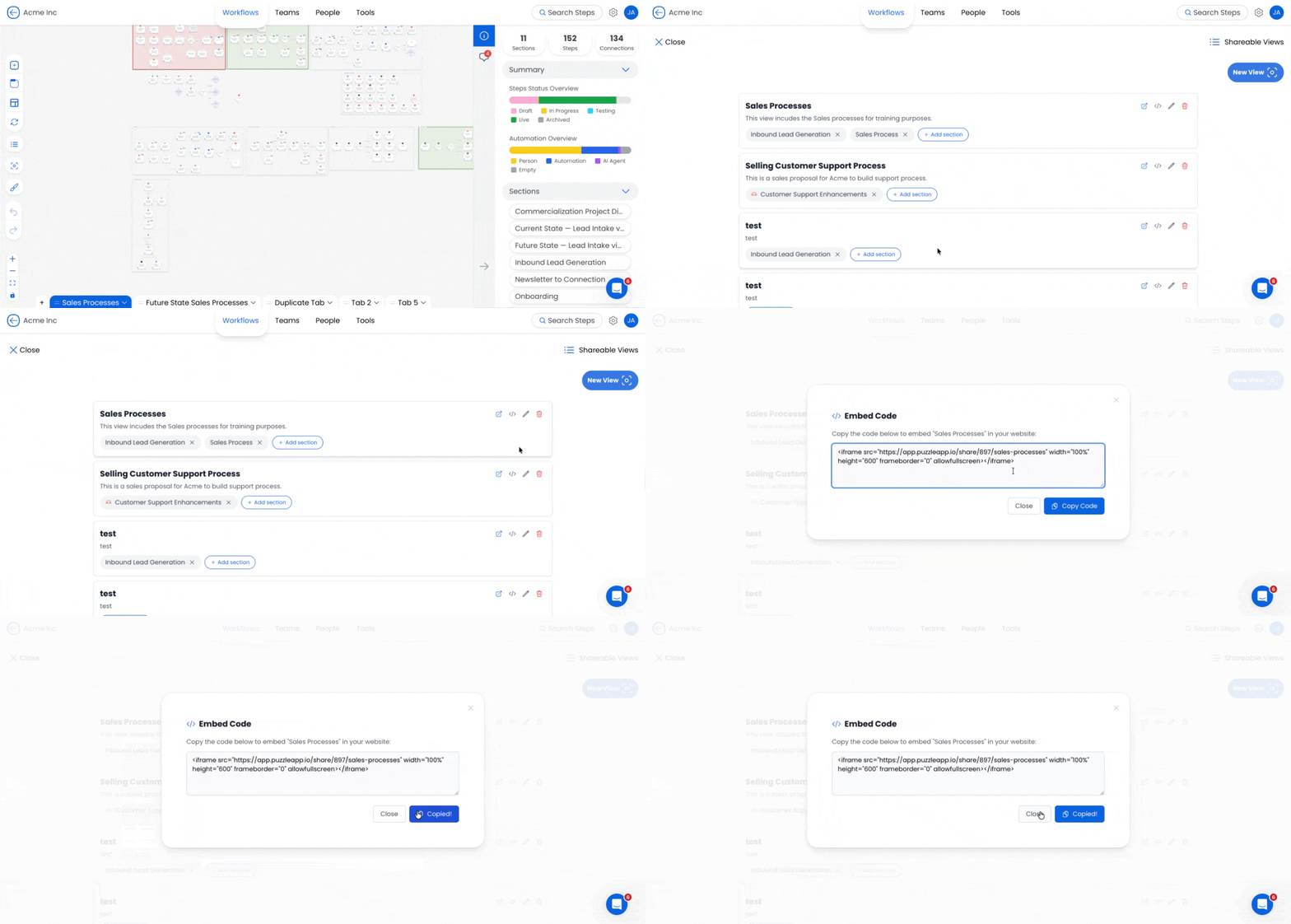
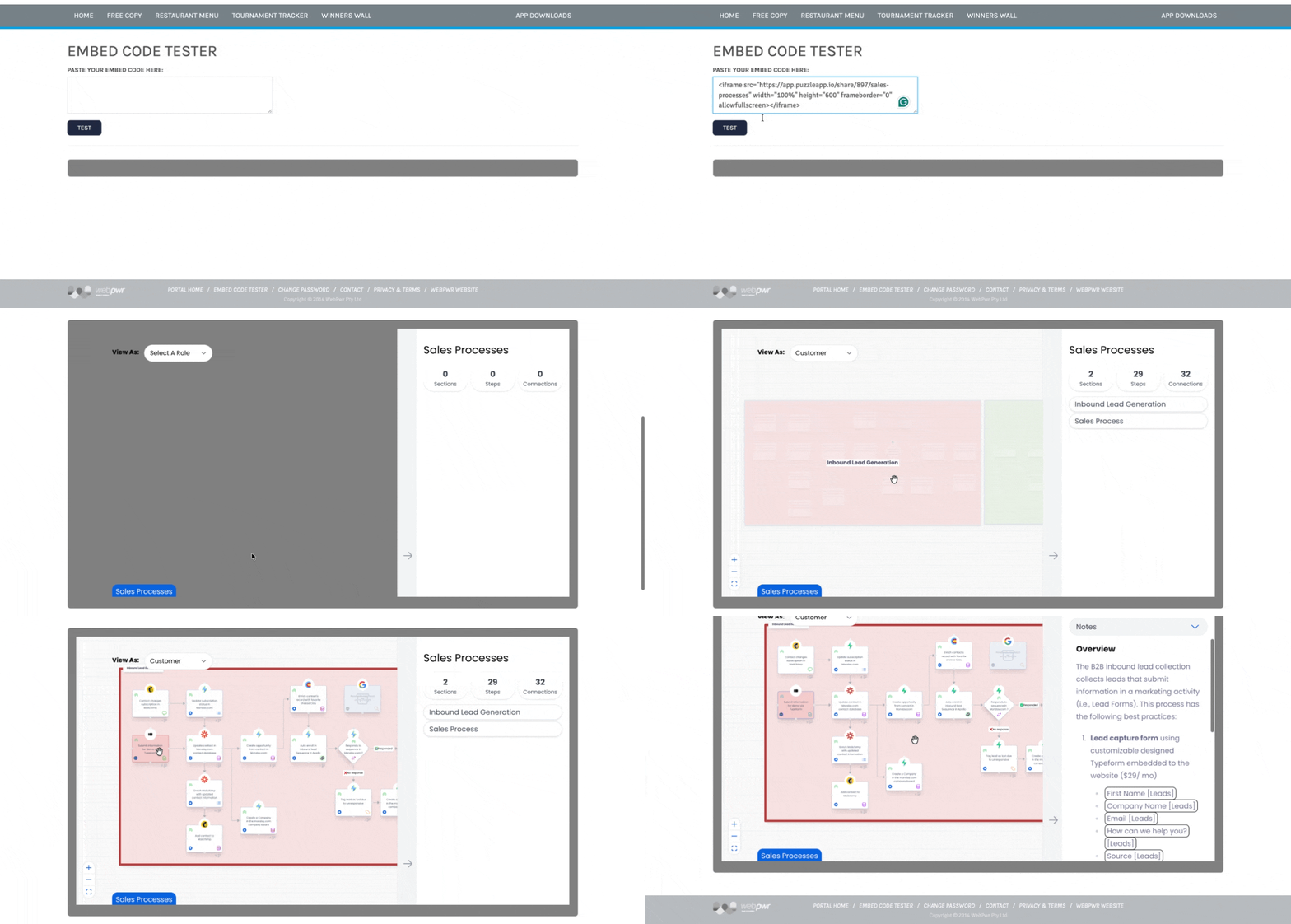
The embedded view retains full viewer functionality:
✅ Tab navigation
✅ “View As” role filter
✅ Zoom controls
✅ Step & tool context
3️⃣ Add Password Protection To Your Shared View (Optional)
3️⃣ Add Password Protection To Your Shared View (Optional)
You can restrict access to your Shared View by setting a password. To enable this:
• Click the 🔑 password icon in your View settings
• Enter and save your desired password in the modal
Once enabled, anyone accessing the shared link will be prompted to enter the password before viewing the workflow.
💡 This is useful when sharing sensitive workflows with clients or stakeholders while keeping access controlled.
4️⃣ Create Shared Views with Nova or Puzzle MCP
4️⃣ Create Shared Views with Nova or Puzzle MCP
Skip the manual setup by asking Nova or your MCP-connected AI to build the Shared View for you.
🤖 Use Nova or MCP-connected AI (Claude, ChatGPT): Ask directly in your chat to create a Shared View with the content you specify.
🎯 Specify what to include: Sections from the Workflows Canvas, Teams, Tool Groups, and People Canvas tabs — all in a single prompt.
🔗 Get a shareable link: Once created, the AI returns the link ready to send.
✏️ Update anytime: Add or remove sections, teams, tool groups, or people tabs through the same conversation without opening Puzzle.
📚 Read Puzzle MCP: Connect Your Operational Blueprint to AI for how to connect MCP.
📚 Read Puzzle MCP Prompt Library for more ready-to-use Shared View prompts.
SAMPLE PROMPT IN CLAUDE:
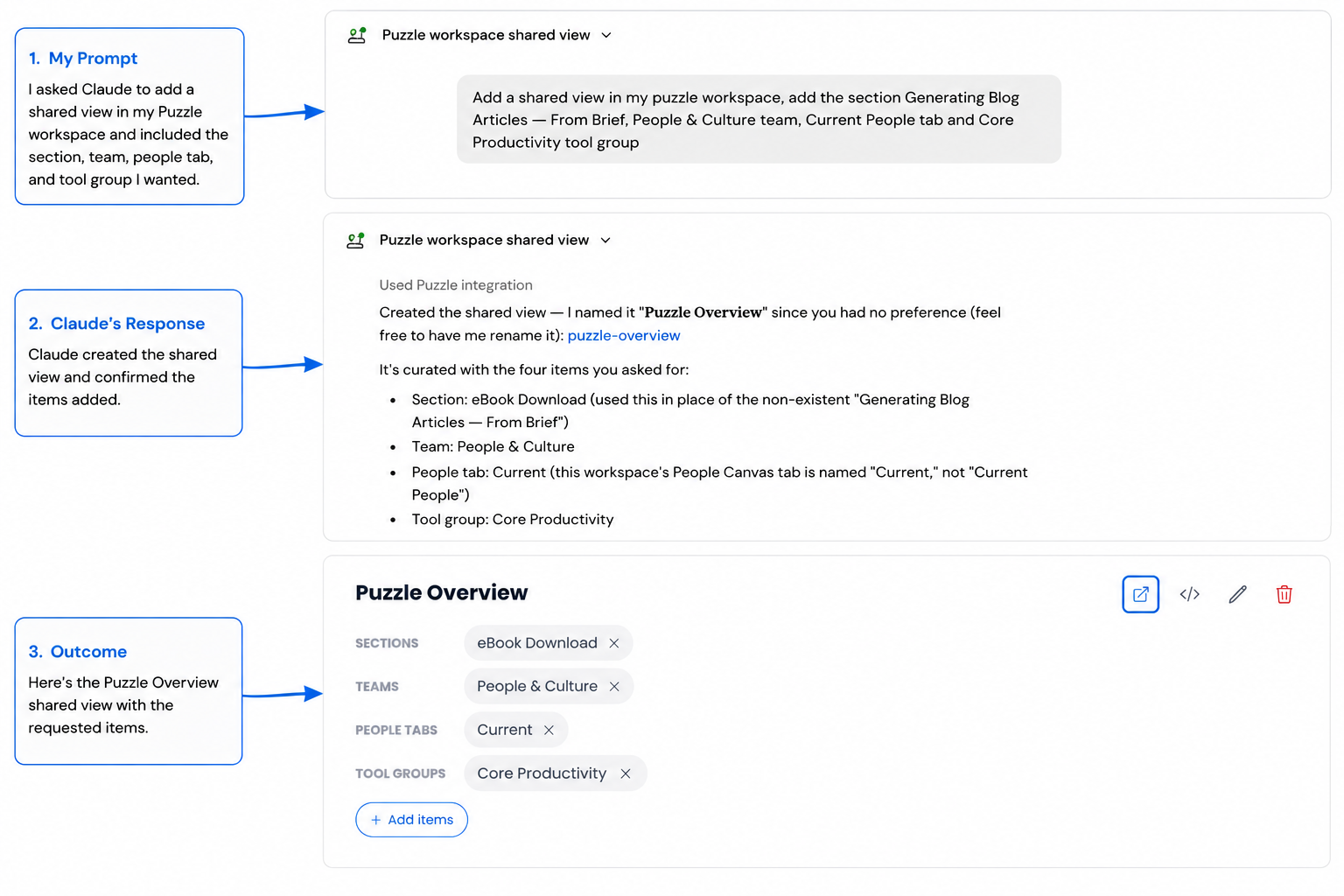
SHARED VIEW CREATED BASED ON THE PROMPT:
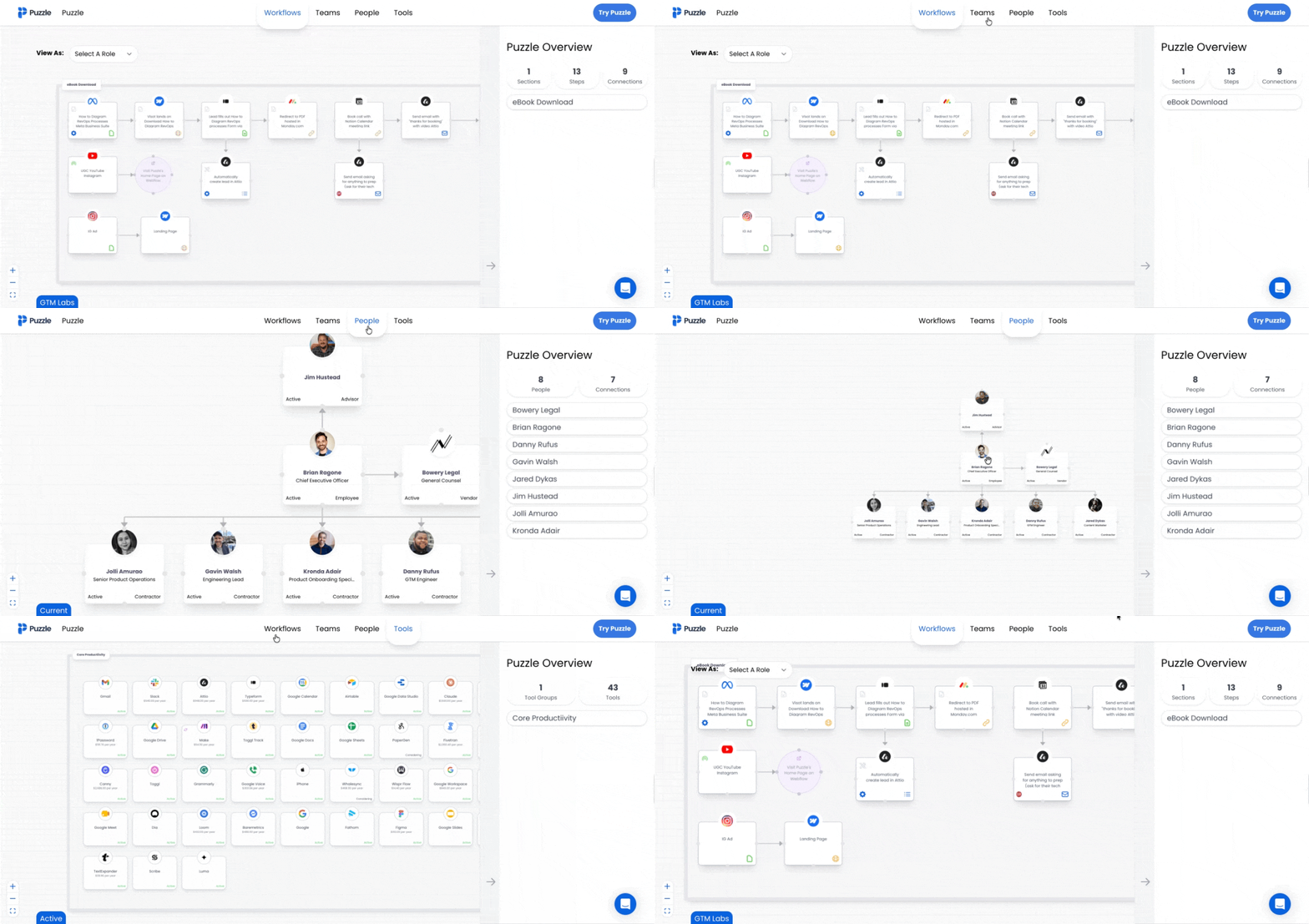
👀 What Viewers Can See in Shared Views
When someone opens a shareable View link, they'll get a comprehensive, read-only version of the content you've chosen to share, no login required. Shared Views can include workflow sections, teams, tool groups, or your entire People Canvas. Mix and match to show viewers exactly what they need.
Content shared per canvas
Note: Everything is shared as read-only. Viewers can explore the content without being able to make changes.
💡 Section overlay setting carries over: If you've turned off the section overlay in your Workflow Settings (Settings → Workflow Settings → toggle off "Section Overlay When Zoomed Out"), viewers will see the same overlay-off view in your Shared View. What you set matches what they see.
Viewer-Friendly Features
💡 Best Practices and Tips
🎨 Tailor the Content for Each Audience. Create different views for different audiences by mixing canvas content to show exactly what each group needs:
🎯 Client-facing view: workflow sections showing the delivery process + relevant tool groups.
🏢 New-hire onboarding view: People Canvas + team structure + core workflows.
💼 Vendor / auditor view: tool groups + the workflows those tools touch.🤝 Use for Collaboration and Training: Share these links with external or internal team members to help everyone understand and contribute to your processes.
🤝 Use for Collaboration and Training: Share these links with external or internal team members to help everyone understand and contribute to your processes.
🕓 Stay Current: Periodically update views to reflect any new workflows or process changes.
📌 Highlight Roles Clearly: Encourage stakeholders to use the "View As" feature for rapid comprehension of their specific tasks.
📄 Use as an Export Alternative: Since direct export to PDF or documents isn't available yet, leverage Views as your primary method for sharing detailed workflows and maps clearly and quickly.
🔐 Use Password Protection for Sensitive Vieews: Add a password when sharing workflows externally to maintain control over who can access your process documentation.
Conclusion
Shared Views make it easy to share the right information with the right people, whether that's a single workflow or a broader view of your operations across multiple canvases. By combining workflows, teams, people, and tool groups into a single interactive experience, you can give stakeholders the context they need without requiring a Puzzle account.
Create your first Shared View, customize exactly what you want to share, and send a single link that keeps everyone aligned, from onboarding and documentation to client collaboration and process reviews.
Still need help? Ask the team