Nova AI
Bring your workflows to life—faster, smarter, and with less manual work.
Written By Jolly Amurao
Last updated About 3 hours ago
Documenting operational workflows often starts with scattered information—whiteboard sketches, SOP notes, spreadsheets, screenshots, or written descriptions. Translating that information into a structured process map can take significant time when done manually.
Nova, Puzzle’s built-in AI workflow generator, removes that friction by transforming your inputs directly into structured workflows inside Puzzle. Instead of dragging boxes across the canvas, you can describe a process, upload a diagram or image, or import structured data, and Nova will generate a workflow ready to refine.
Nova acts as a workflow co-builder inside Puzzle, helping operators, consultants, and internal teams move quickly from raw information to structured operations maps. Teams can generate workflows, assign roles, connect tools, and visualize complex processes in seconds.
Nova is currently available in Beta, and its capabilities continue to expand as teams use it to accelerate process documentation and operational design.
Benefits of Using Nova AI Agent
🚀 Accelerate Workflow Creation: Generate structured workflows in seconds instead of manually building every step and connection.
📄 Convert Existing Documentation into Processes: Turn SOPs, diagrams, spreadsheets, or screenshots into editable workflows inside Puzzle.
🧠 Reduce Manual Setup Work: Automatically generate sections, steps, roles, and tool assignments based on your inputs.
🔍 Improve Operational Clarity: Quickly visualize complex processes so teams can review, refine, and optimize them together.
⚙️ Start Optimizing Immediately: Begin with an AI-generated workflow, then edit and expand it to match your real operations.
🌟 Key Capabilities of Nova
Nova creates real workflow components inside your Puzzle workspace, not just text summaries. Everything generated becomes fully editable in your canvas.
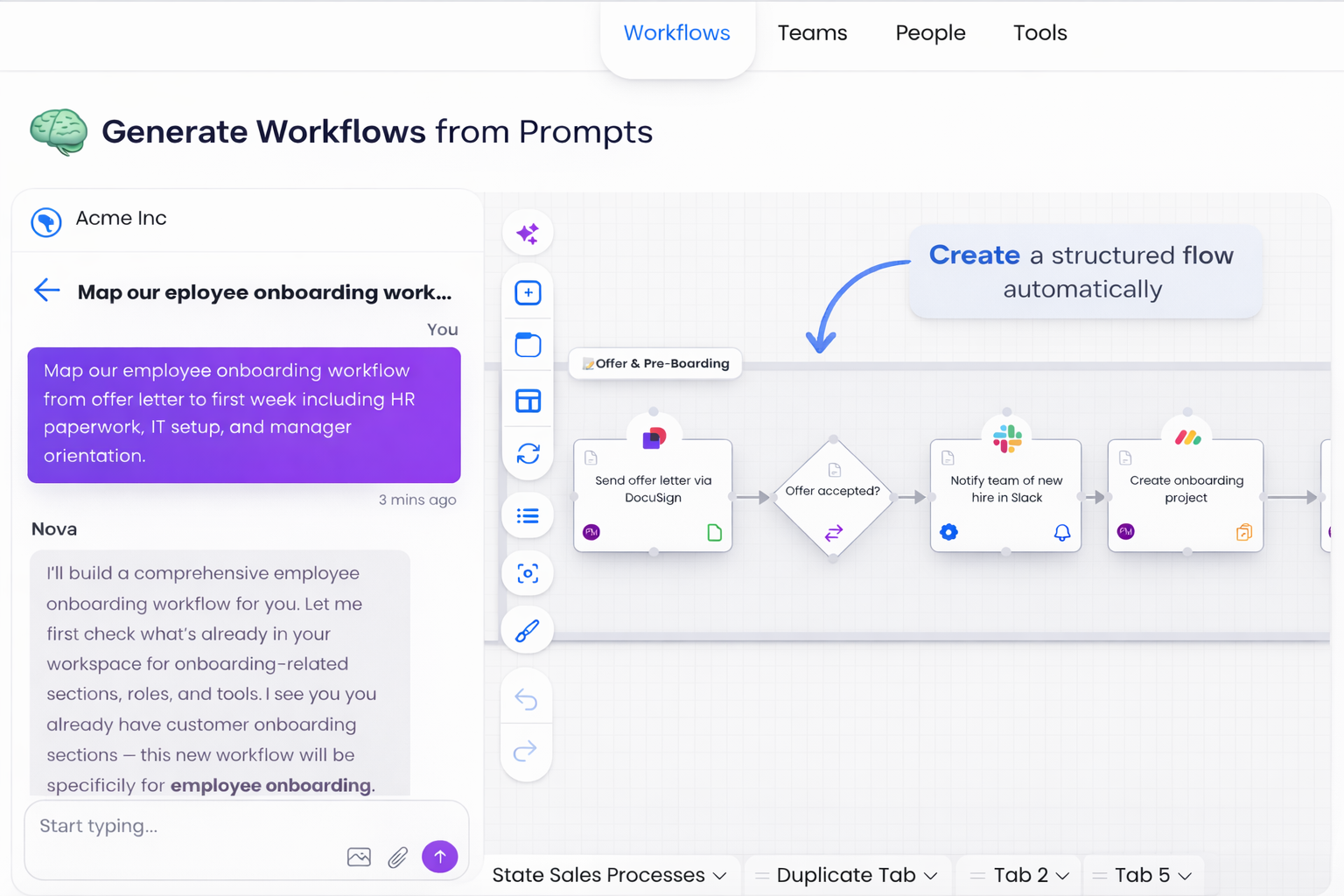
🧠 Generate Workflows from Prompts
Describe your process in natural language, and Nova will build a structured workflow with sections, steps, roles, tools, and connections.
Nova works best when prompts reference Puzzle’s workflow fields directly. When describing a process, try to include details such as:
Step name
Step type (Task, Decision, Trigger, Review, Approval)
Step status
Executor role
Tools used
Notes or instructions
Section the step belongs to
Providing structured details helps Nova generate more accurate workflows with clearer ownership and logic.
Beyond generating workflows, Nova can also make targeted updates to specific objects in your workspace. Reference an object by name in your prompt, and Nova applies the change directly:
Step tasks: list, add, rename, complete, or remove tasks on any step.
Tool metadata: update notes, price, number of months, or renewal date on any tool.
Tool cost items: add and read cost items on any tool. Supports all four cost types — Per Seat, Usage, Flat Fee, and One-Time.
Colors: apply colors to sections, individual steps, and connector labels. Great for color-coding by status, team, or branching path.
🖼 Convert Images into Workflows
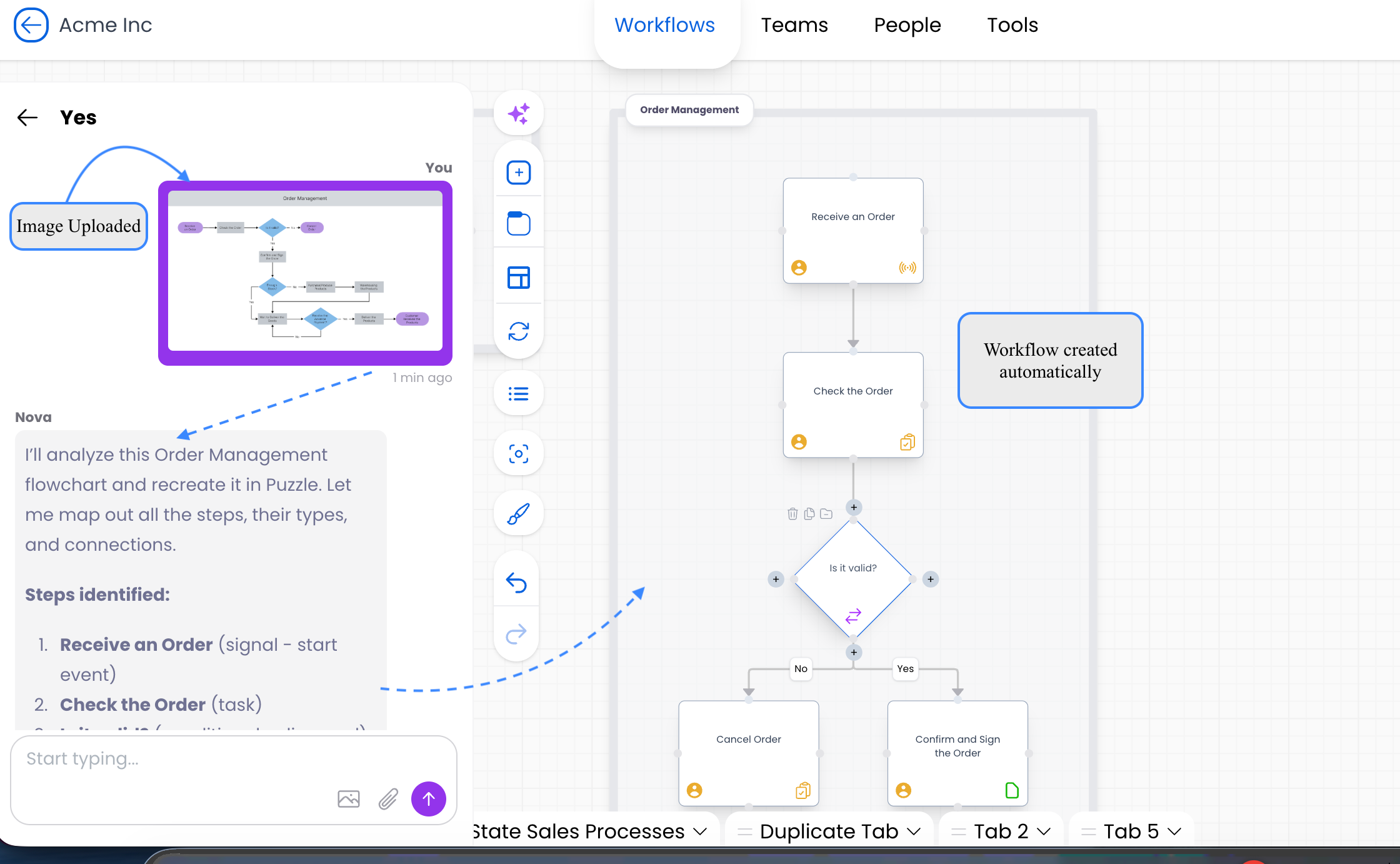
Upload screenshots, whiteboard photos, or flow diagrams, and Nova will interpret the structure and rebuild it as an editable Puzzle workflow.
This works well for:
• Whiteboard sketches
• Flowcharts
• System diagrams
• Automation maps from tools like Zapier, HubSpot, or n8n
📊 Import CSV Files into Workflows
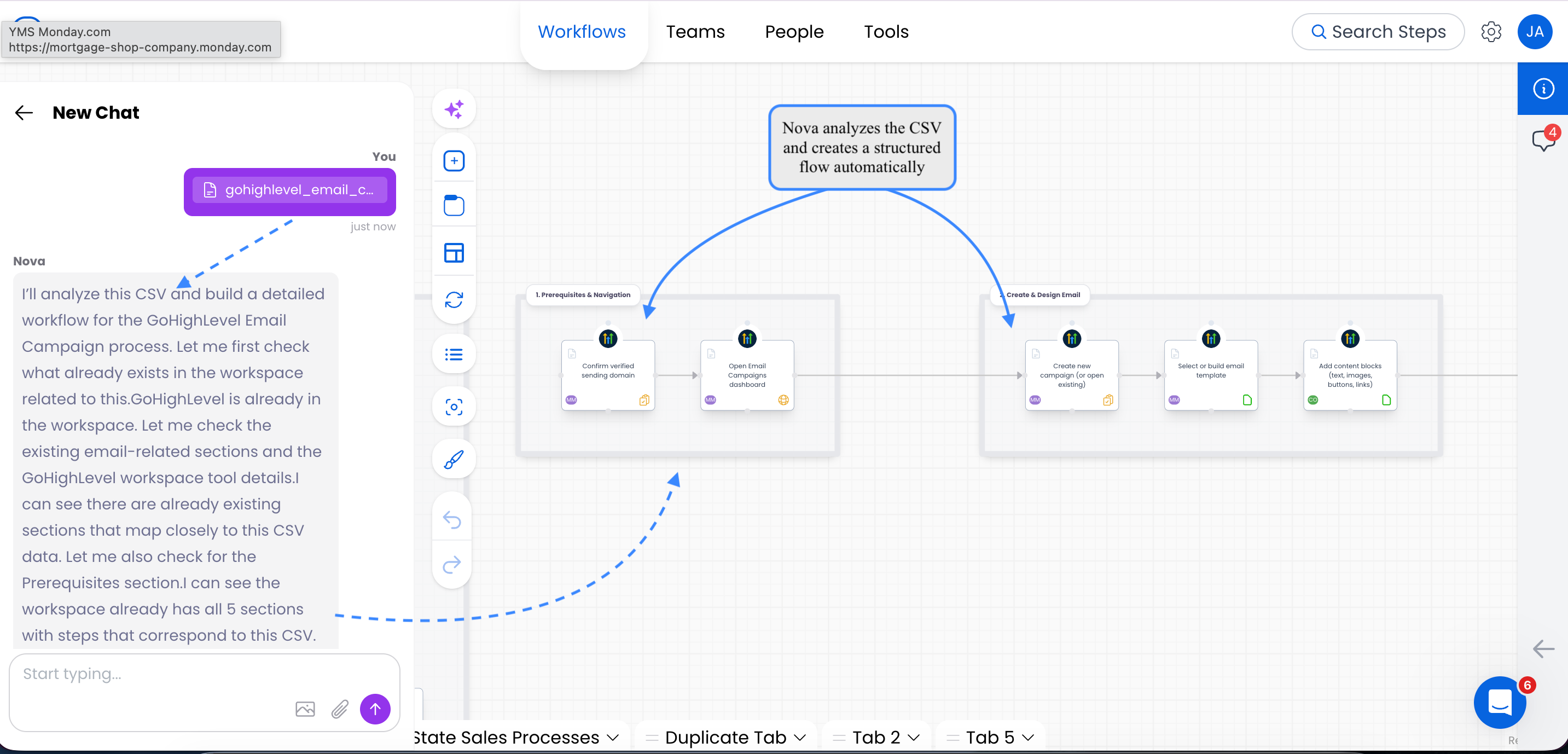
If your processes or system architecture already exist in spreadsheets, you can upload a CSV file, and Nova will translate structured rows into workflow components.
CSV uploads work best when the file includes fields such as step names, roles, tools, or sections. This makes it easy to bulk-create workflows from existing documentation, SOP libraries, or operational spreadsheets.
💡 Need a starting point? You can use this CSV template folder to structure your data before uploading it to Nova:
👉 https://drive.google.com/drive/folders/1KbJLUYv3_q0dxqNJXrGEfl2dDsgKFXJd?usp=sharing
These sample templates show how to format steps, roles, tools, and sections so Nova can generate workflows more accurately.
📄 Convert Word Documents into Workflows
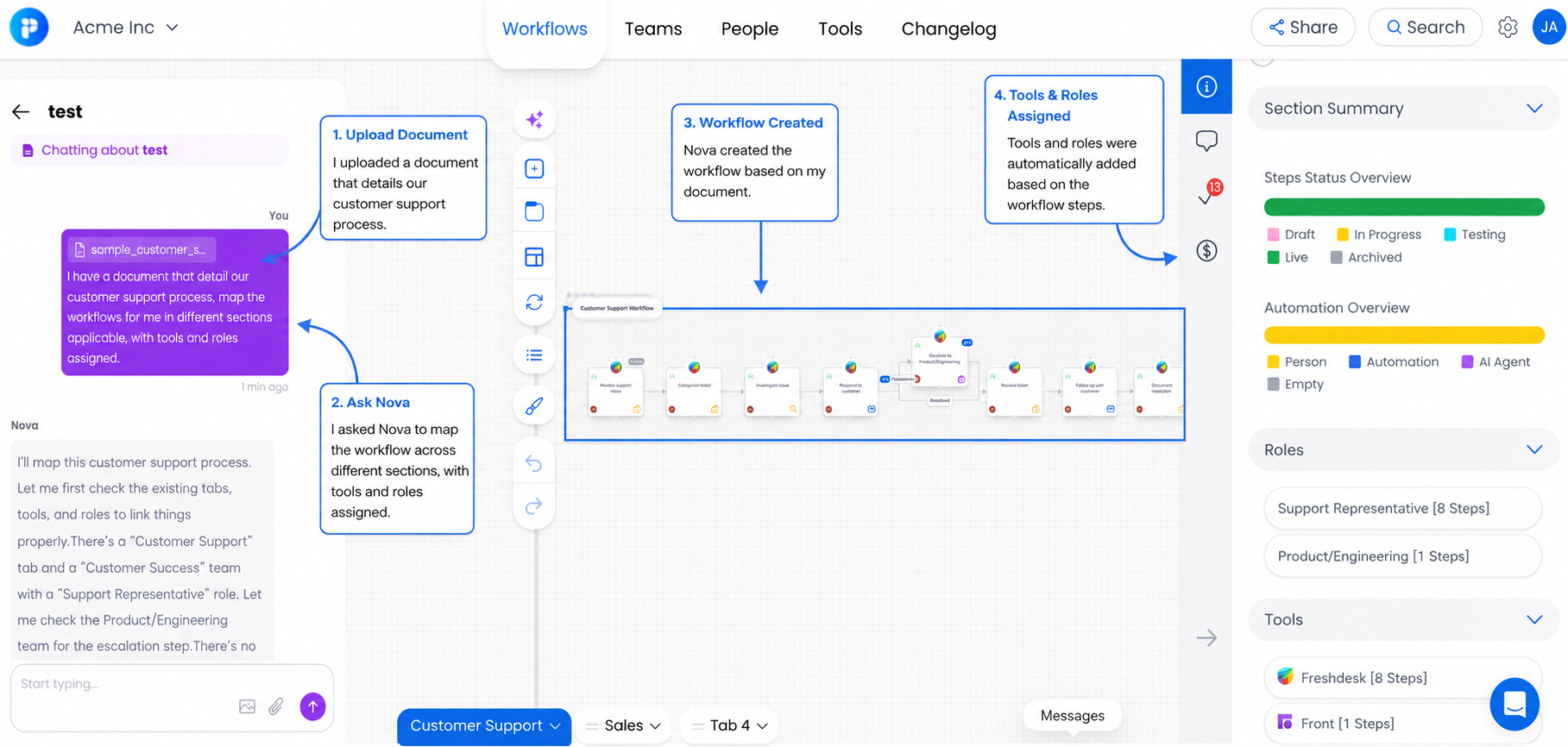
Upload a Word document (.docx) containing your process notes, SOPs, or org documentation, and Nova will interpret the content and build a structured workflow inside Puzzle.
This works well for:
Existing SOPs written in Word
Process documentation exported from other tools
Meeting notes describing a process step-by-step
Org charts documented in text form
💡 Tip: Nova works best with clearly structured documents. Include section headings, step names, and role assignments so it can map the content accurately.
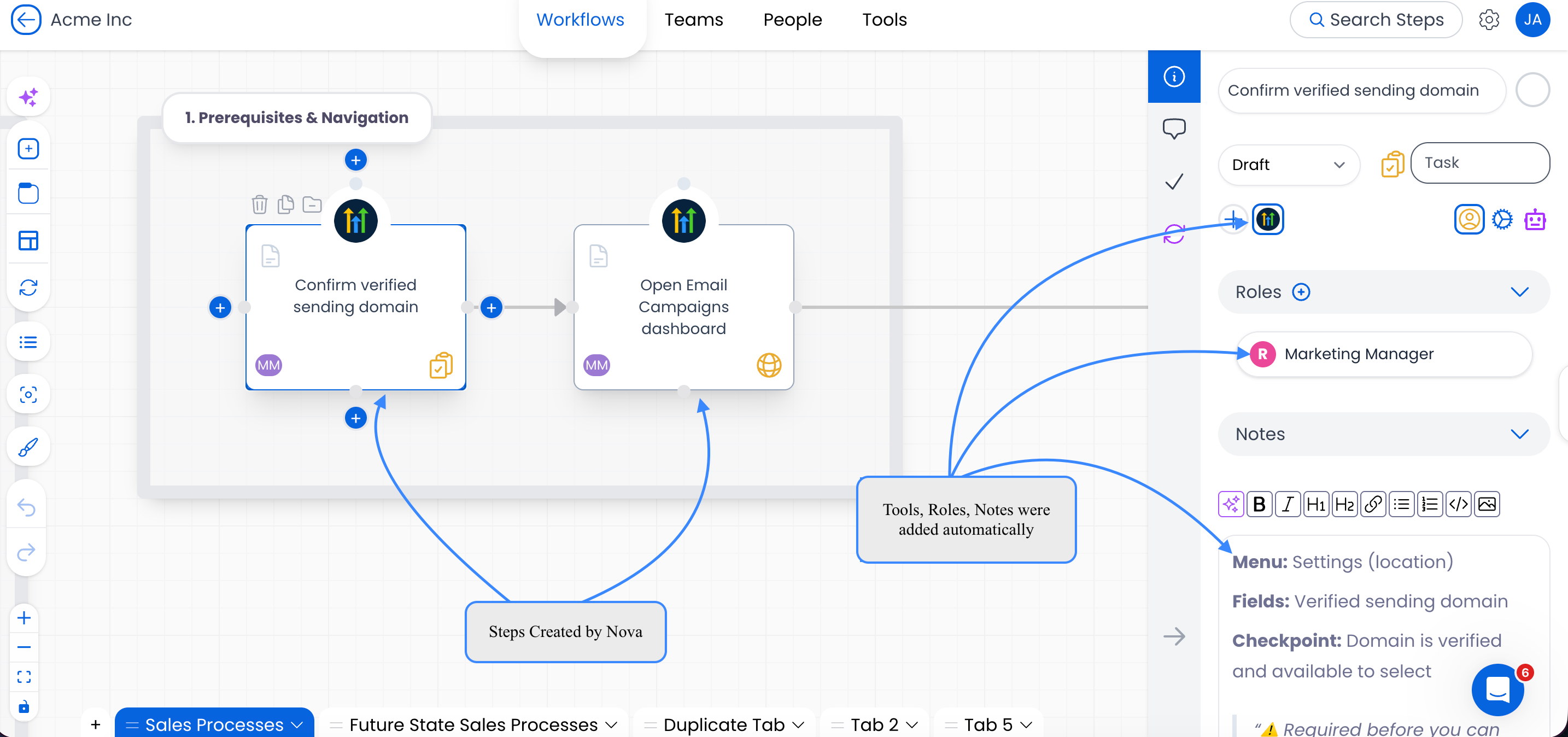
👥 Automatically Create Roles, Teams, and Add Tools to Your Workflows
Nova can generate roles within your Team Canvas and assign them to workflow steps, helping to clarify ownership throughout the process. It can also search Puzzle’s global tool directory, add tools to your workspace, and assign them to the appropriate steps in your workflow.
Roles and tools created by Nova are linked across canvases in Puzzle. Roles are created in the Team Canvas, and tools are added to the Tool Canvas and then automatically assigned to workflow steps.
This ensures workflows connect directly to the people and systems involved in each part of the process.
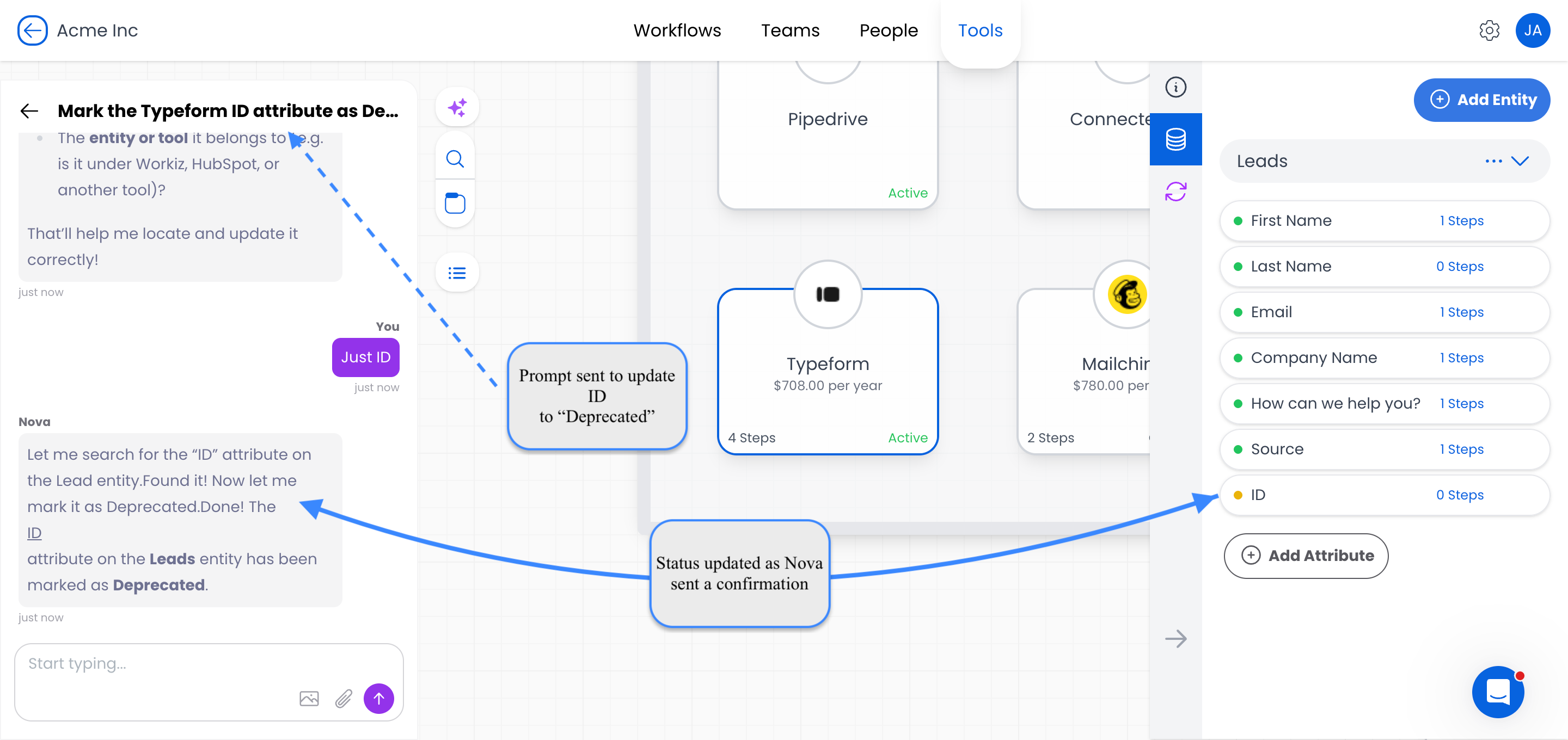
🗂️ Update Attribute Status in Your Data Model
Nova can update attribute statuses in your data model directly, without leaving the chat. Ask Nova to mark an attribute as Draft, Active, Deprecated, or Deleted, and the change is reflected in Tools → Data Model List view alongside the rest of your attributes.
This is useful when you're cleaning up legacy fields, promoting drafts to active, or retiring data points after a system migration — Nova handles the status update so you don't have to open each attribute manually.
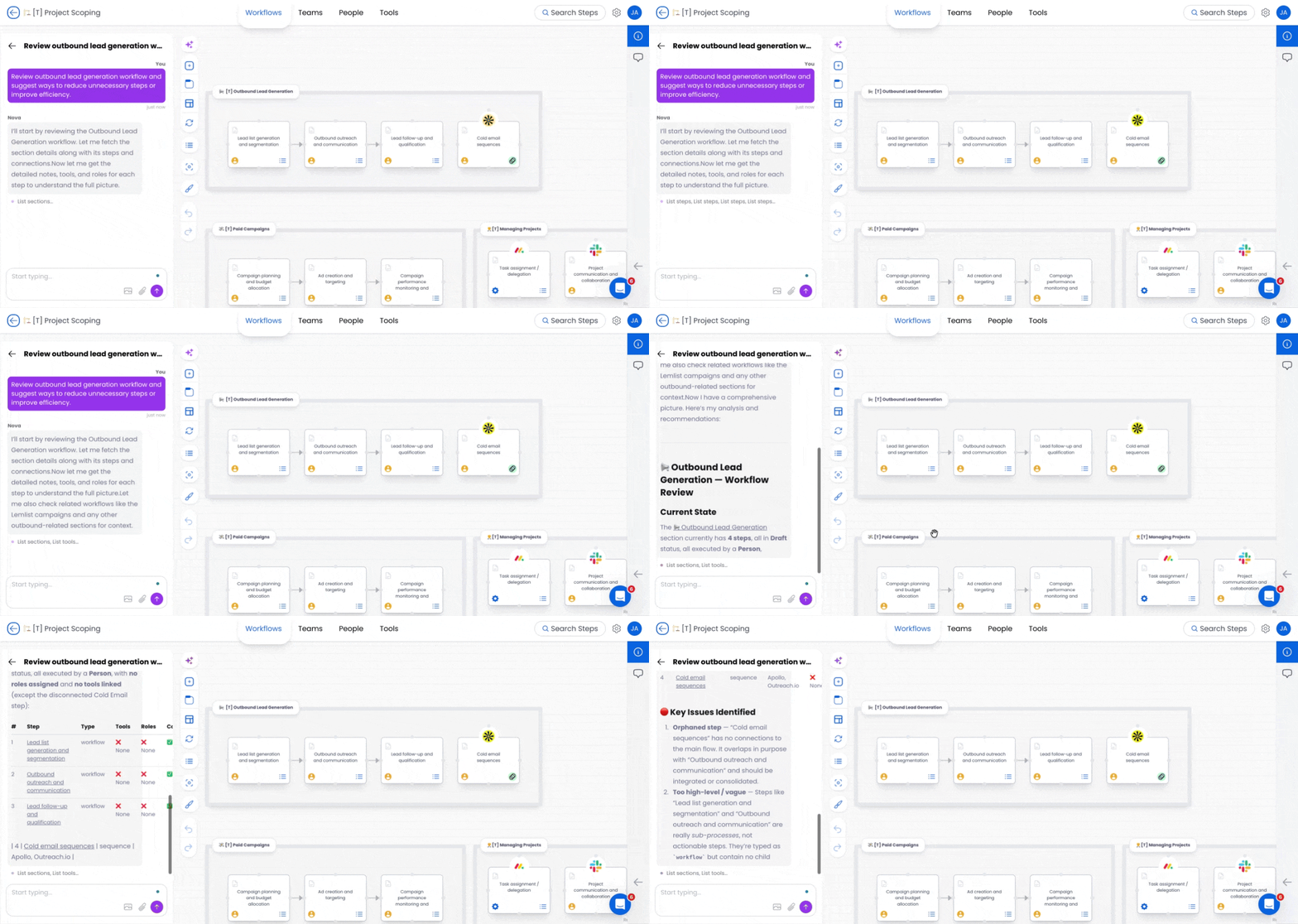
🔎 Analyze and Optimize Existing Workflows
Nova can also help you analyze existing processes in your workspace and suggest improvements.
You can ask Nova to review a specific workflow and identify opportunities to improve efficiency, simplify steps, or reduce bottlenecks. Nova can analyze the structure of a process and provide suggestions such as:
Highlighting redundant or unnecessary steps
Identifying areas where responsibilities may be unclear
Suggesting opportunities to consolidate or simplify steps
Recommending ways to restructure sections for better clarity
This makes Nova useful not only for building workflows, but also for reviewing and improving existing processes as your operations evolve.
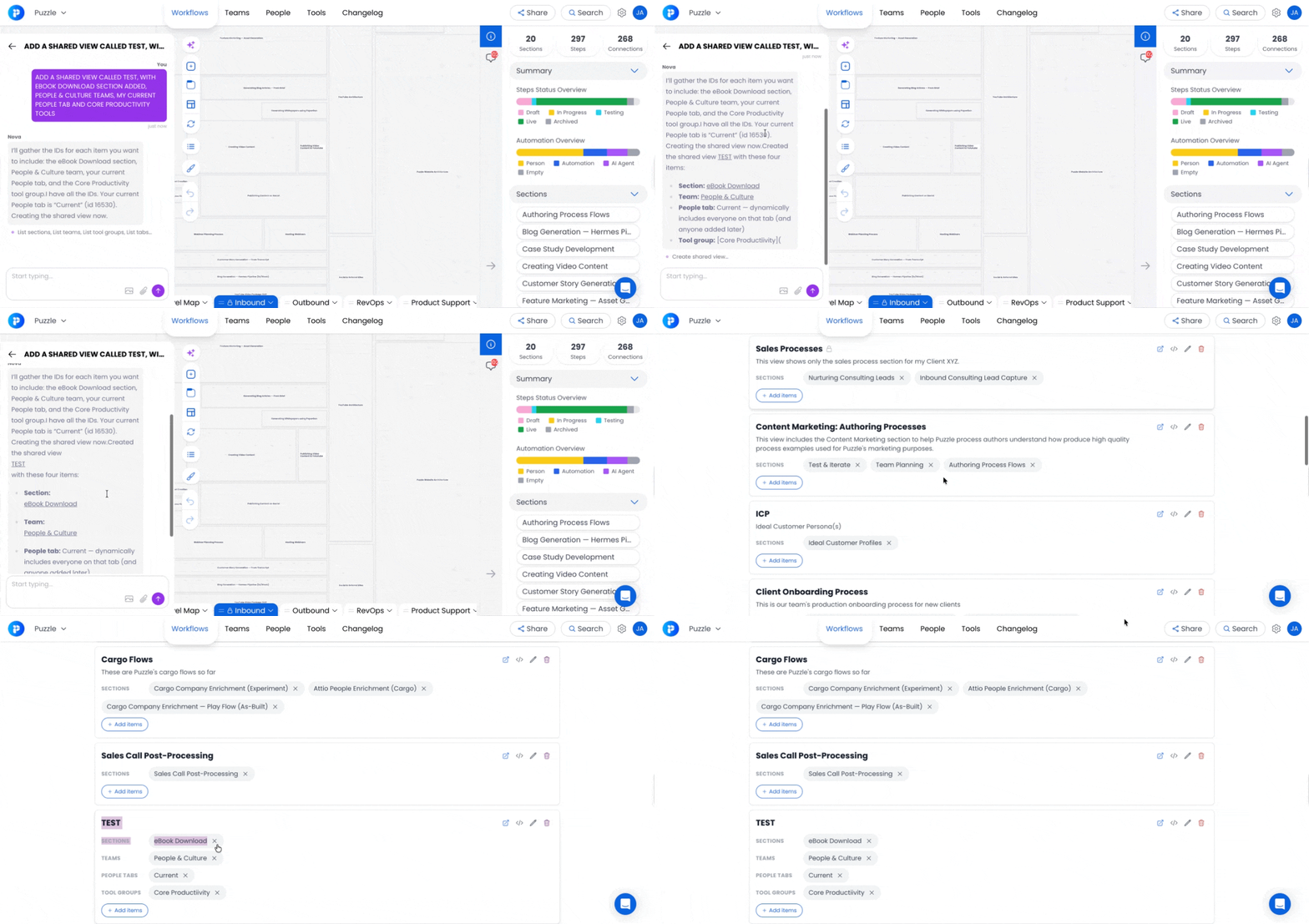
🔗 Create and Manage Shared Views
Ask Nova to build a Shared View directly from your workspace. Specify the workflow sections, teams, tool groups, and people tabs you want to include, and Nova creates the view and returns the shareable link.
Nova can also update existing Shared Views. Add or remove content, rename views, or duplicate a view for a different audience without leaving your Nova chat.
📚 Read Shared Views: Share and Collaborate for how Shared Views work.
🎥 Video Guide: Using Nova (Puzzle AI)
How to Generate Workflows with Nova
1️⃣ Open Nova
1️⃣ Open Nova
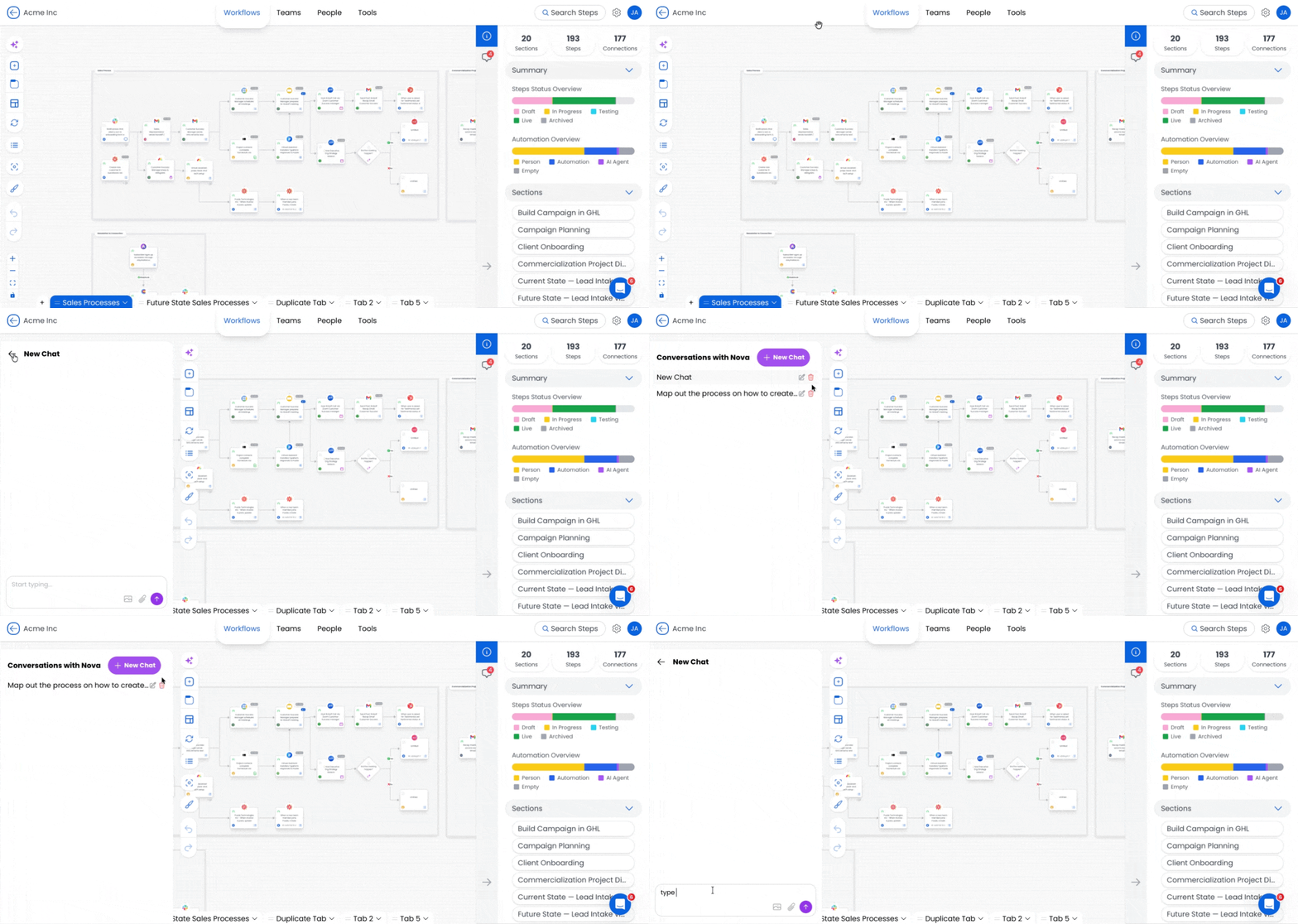
Go to your workspace and click the Nova icon in the left-hand toolbar.
The Nova sidebar will open, where you can:
Start a New Chat
Continue a previous conversation
Rename chat threads
Delete past chats
Each conversation is saved so you can revisit earlier workflow generations.
2️⃣ Provide Your Input
2️⃣ Provide Your Input
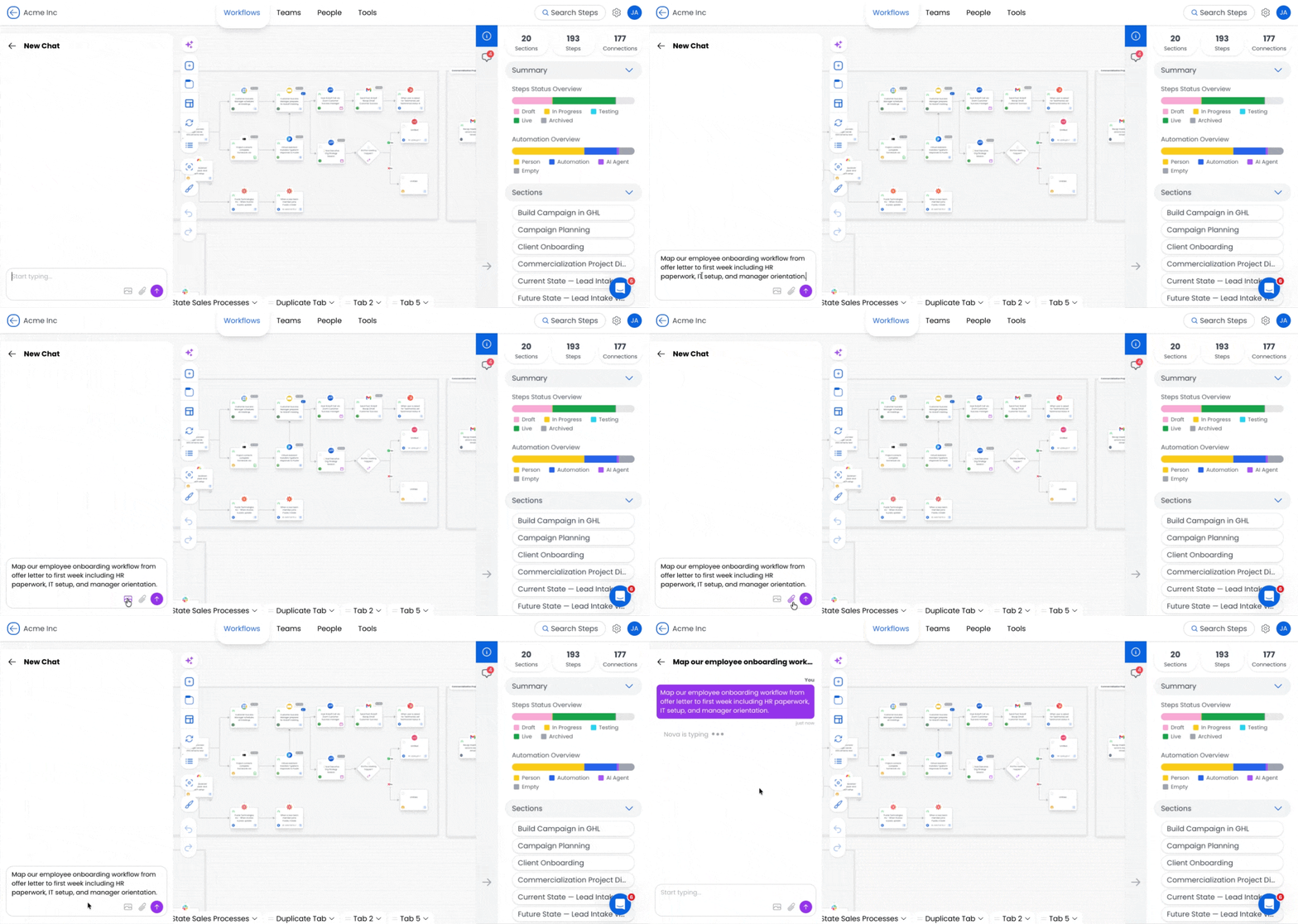
Enter the process you want Nova to generate.
You can provide input by:
Typing a detailed prompt
Uploading a diagram or image
Uploading a CSV file
Uploading a Word document (.docx)
Nova will interpret the structure of your input and prepare a workflow generation.
Nova can also work across multiple canvases in a single request. For example, you can ask Nova to create a workflow step, assign a role from the Team Canvas, and attach tools from the Tool Canvas—all within the same prompt.
Referencing existing roles, teams, or tools by their exact name helps Nova link to those objects instead of creating duplicates.
3️⃣ Review and Edit the Workflow
3️⃣ Review and Edit the Workflow
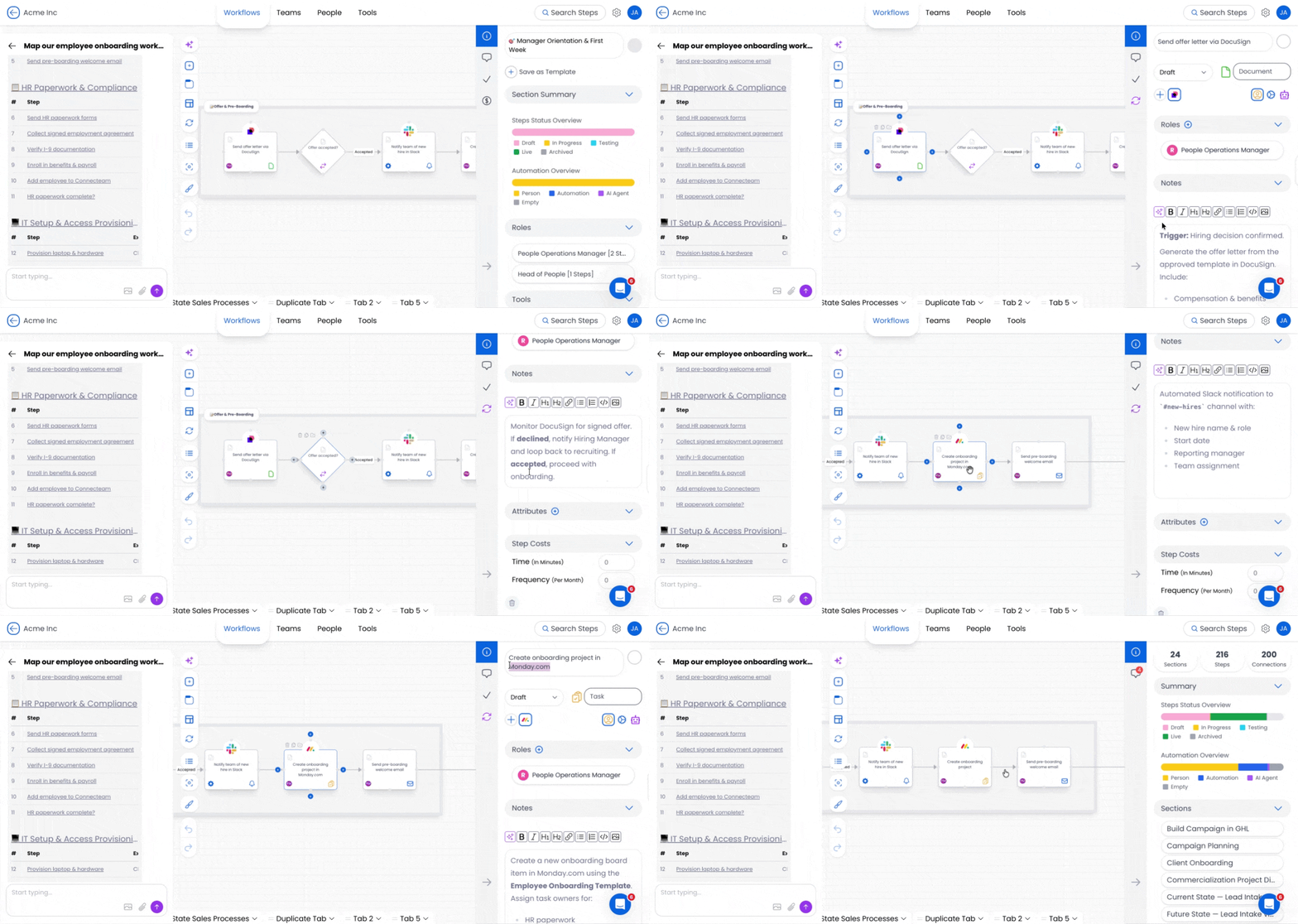
Once the workflow appears in the canvas, you can edit it just like any other Puzzle workflow.
You can:
• Rename steps
• Update roles
• Change tools
• Adjust connections
• Add additional sections
4️⃣ Check Your Credit Balance or Buy More Credits
4️⃣ Check Your Credit Balance or Buy More Credits
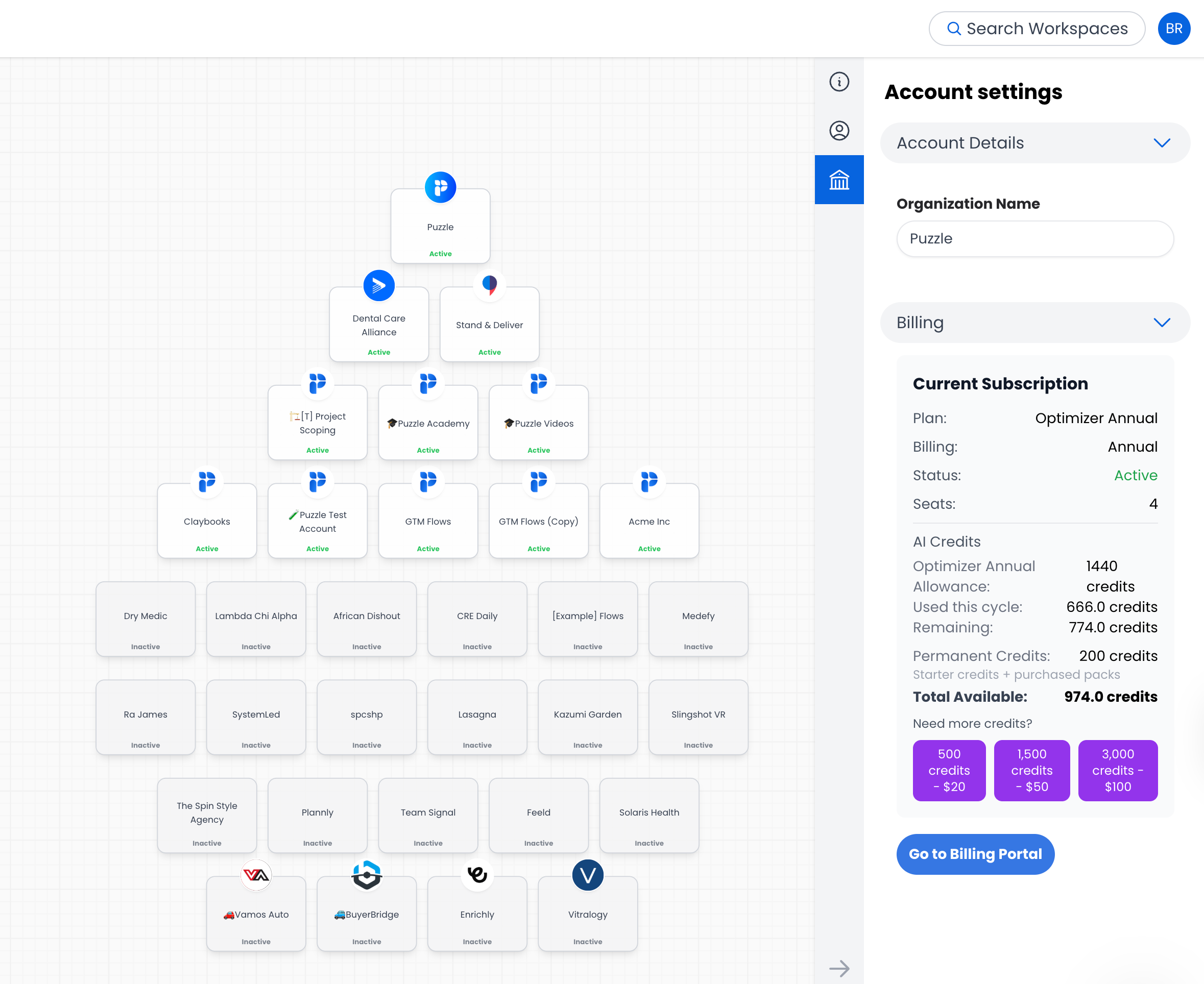
You can view your organization’s Nova credit balance and manage credits from the Billing section in your Organization settings.
Go to your Organization page in Puzzle.
Click the account icon 🏛️ in the right sidebar navigation and scroll down to the Billing section.
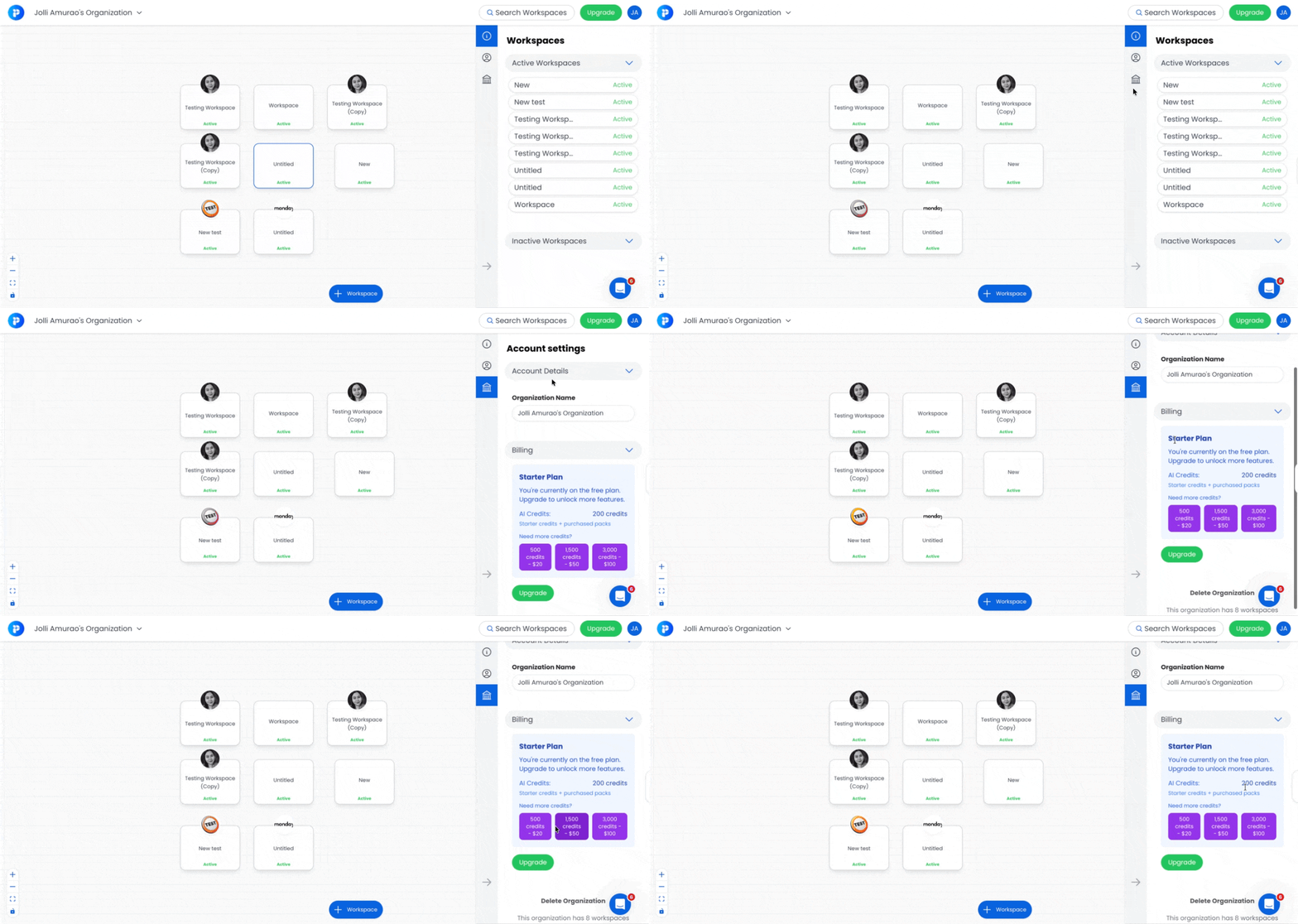
In this section, you can see:
Your starter credits (total, used, and remaining): shown while you still have starter credits available. New accounts receive 1,000 or 2,000 starter credits depending on the onboarding path chosen. Once all starter credits are used, this line no longer appears in the billing view.
Your purchased credits (total, used, and remaining): shown anytime you've bought a credit pack.
Buy more credits: opens the credit pack purchase options (Small, Medium, or Large).
⚠️ Only the organization owner can purchase credit packs. If you are not the owner, you will not see the purchase option. If you are the owner and still have trouble purchasing credits, please contact support@puzzleapp.io.
💳 Understanding AI Credits
All AI actions in Nova are powered by AI Credits. Credits are consumed whenever Nova analyzes files, generates workflows, or updates processes in your workspace.
Credits allow Puzzle to scale AI usage based on the complexity of what you're asking Nova to do.
AI Credit Types
Credit Pack Options
How Credits Are Used
💡 Important: Nova consumes credits based on complexity, not a fixed cost per action. Larger workflows or more complex files will require more credits.
How Nova Uses Your Credits
If your organization runs out of credits:
Nova will finish the current action
Next prompt, you'll see an option to purchase additional credits
Purchased credits work on all plans, including Free
💡 Tip: If you're planning to convert multiple diagrams, CSV files, or large workflows, purchasing a credit pack ensures Nova can continue generating workflows without interruption.
💡 Best Practices for Using Nova
✍️ Use structured, detailed prompts: Include key workflow details such as sections, step names, executor roles, tools used, and notes. Referencing these fields clearly helps Nova generate more accurate workflows with better ownership and structure.
🖼 Start with clean, structured inputs: High-quality diagrams or structured CSV files allow Nova to interpret your process more accurately when converting existing documentation into workflows.
🧱 Let Nova build the first draft: Use Nova to generate the initial workflow structure, then refine it by adjusting steps, roles, tools, and connections to match your real operations.
🗂 Define sections before listing steps: Providing clear sections—such as Intake, Review, and Approval—helps Nova organize workflows logically and produce cleaner process maps.
🔗 Create steps first, then define connections: For larger workflows, it can be helpful to generate all steps first and then ask Nova to connect them. This reduces diagram errors and makes it easier to review the full process structure.
💬 Use conversation threads to refine workflows: Continue the same Nova chat to modify steps, reorganize sections, update tools, or expand the workflow instead of starting from scratch.
↔️ Specify the workflow layout if needed: If you want your process to flow left-to-right (horizontal) or top-to-bottom (vertical), include that instruction in your prompt so Nova builds the diagram accordingly.
💳 Monitor credit usage for larger tasks: Generating workflows from diagrams, images, or large datasets typically uses more credits.
Conclusion
Nova transforms how teams build and document operational workflows inside Puzzle. Instead of manually recreating processes from scattered documentation, teams can generate structured workflows directly from prompts, diagrams, and spreadsheets.
The result is faster documentation, clearer operational visibility, and workflows that are immediately ready to refine, share, and optimize.
As Nova continues evolving during Beta, it unlocks new ways for teams to design, understand, and improve their operations architecture—turning ideas and documentation into fully structured workflows inside Puzzle!
Still need help? Ask the team