Data Export
Export every step and connector in your workspace to a single .xlsx file, ready to open in Excel, Google Sheets, or any spreadsheet tool.
Written By Brian
Last updated About 2 hours ago
Available with any of the following subscriptions, except where noted: 🟢 Starter (up to the plan’s step limit) | 🟣 Optimizer | ⚫ Enterprise
Great operations deserve great visibility.
Puzzle Data Export gives you a complete, structured snapshot of your workspace in seconds. Every workflow step. Every connector. Every relationship. Export it all into a single Excel file that's ready for analysis, reporting, backups, or sharing with anyone on your team.
No rebuilding your workflows. No copying data by hand. Just your operational blueprint—organized, portable, and ready to work wherever you do.
This guide walks you through the export process, what's included in the file, and how to get the most value from your data.
Benefits of Puzzle Data Export
💾 Keep a backup of your workflow data. Download the full workspace as an Excel file whenever you want a snapshot. Save it anywhere your team stores backups.
📊 Analyze your workflows in a spreadsheet. Sort, filter, pivot, or run formulas on your workflow structure using the same tools your team already uses.
🤝 Share with people outside Puzzle. Send workflow data to teammates, clients, or auditors who don't have Puzzle access. Excel is universal.
🔗 Connectors ship alongside steps. The export captures both your steps and the connectors between them in separate sheets, so the full workflow structure is portable.
🎯 Section, tab, and tool context included. Every step row carries its section, tab, and linked tool by name and ID, so nothing gets lost in translation.
🎥 Video Guide
Coming soon...
How to Use Puzzle Data Export
1️⃣ Open Workspace Settings
Find the export option in your workspace settings.
🏢 Open your workspace in Puzzle.
⚙️ Click Settings at the top of your workspace.
📂 Click the Data section.
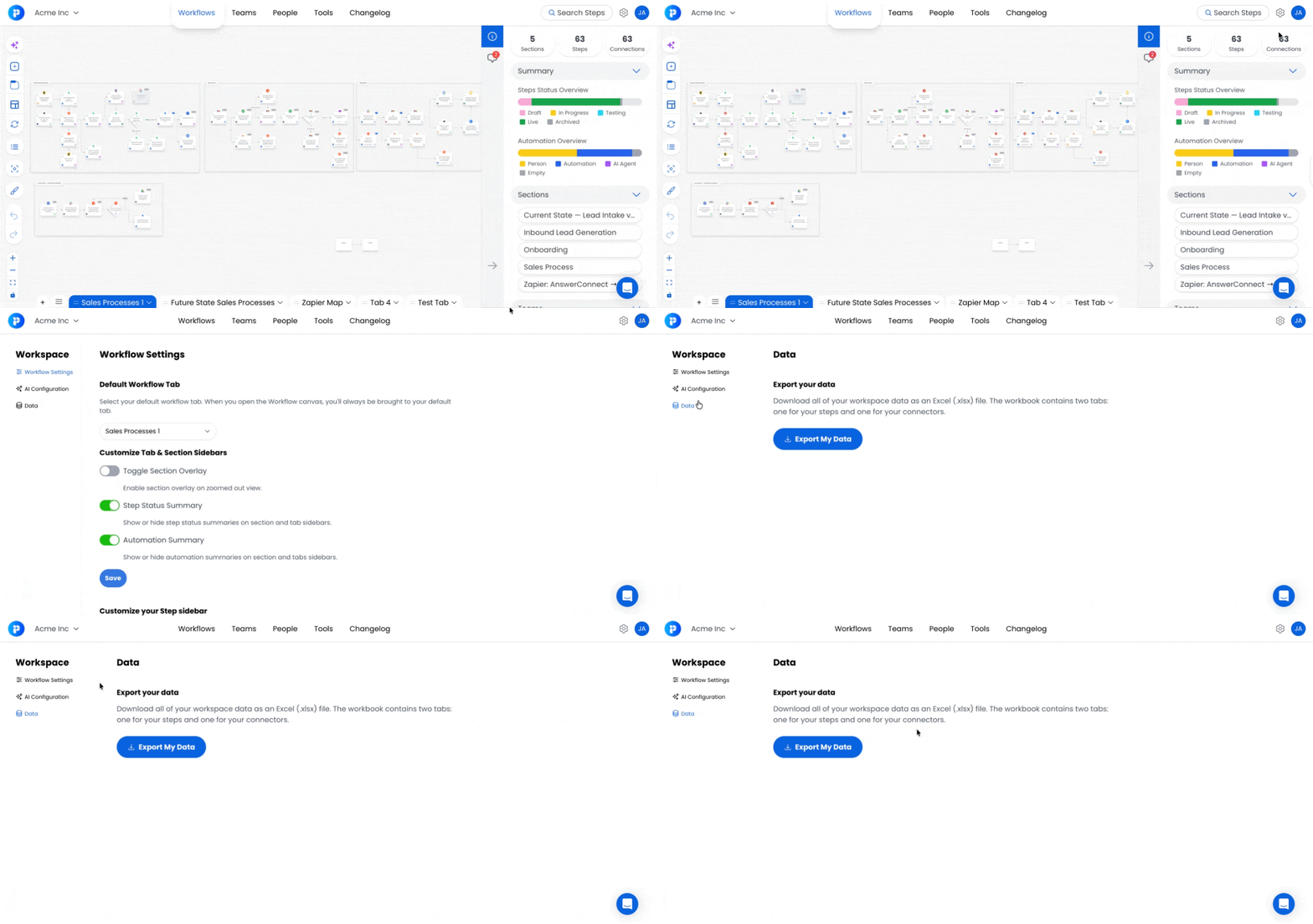
2️⃣ Export Your Workflows
Trigger the export and download the file.
📥 Click the Export button under "Export Your Workflows."
⏳ Puzzle generates an .xlsx file with your workflow data.
💾 The file downloads to your device's downloads folder.
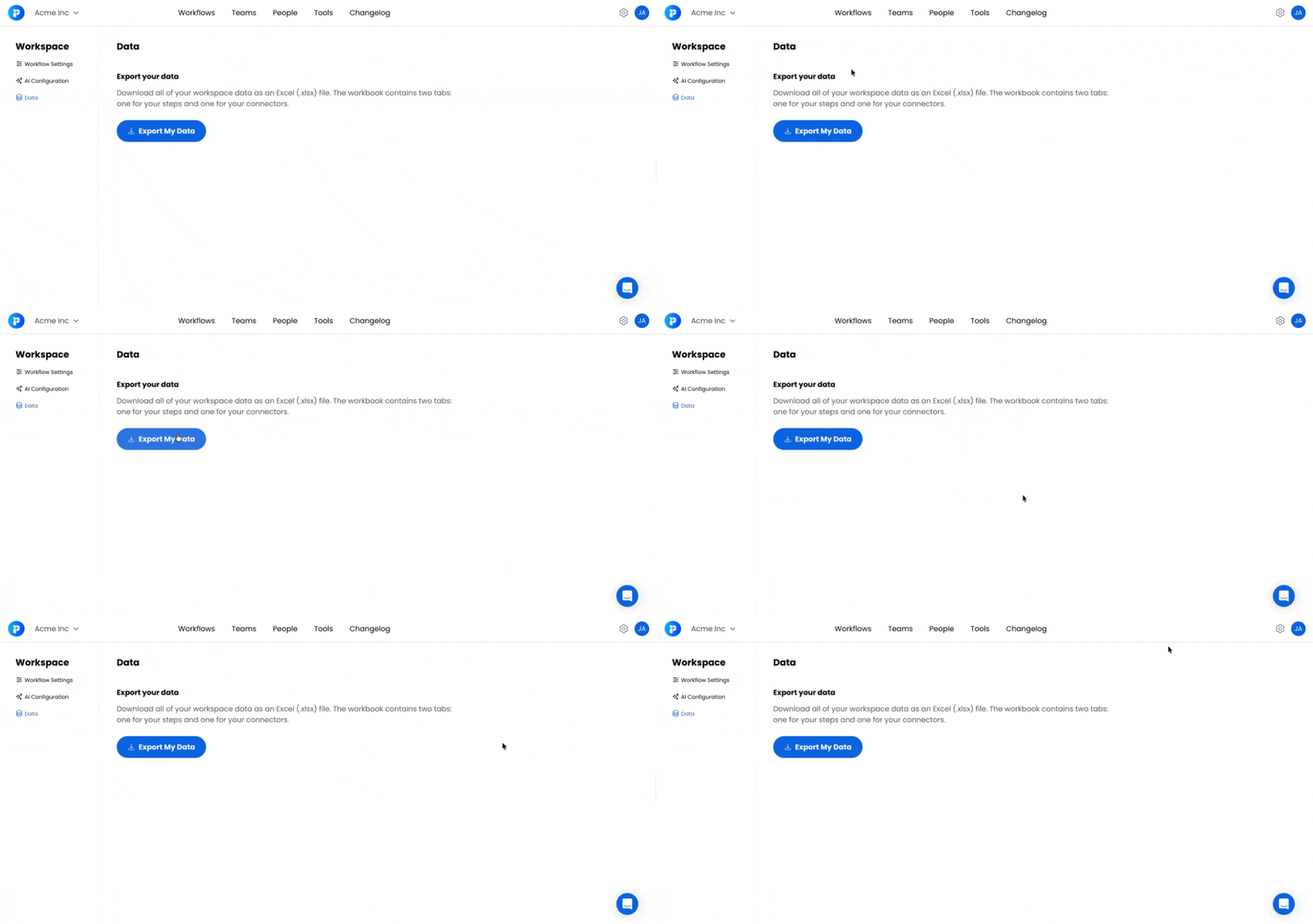
Exported Data:
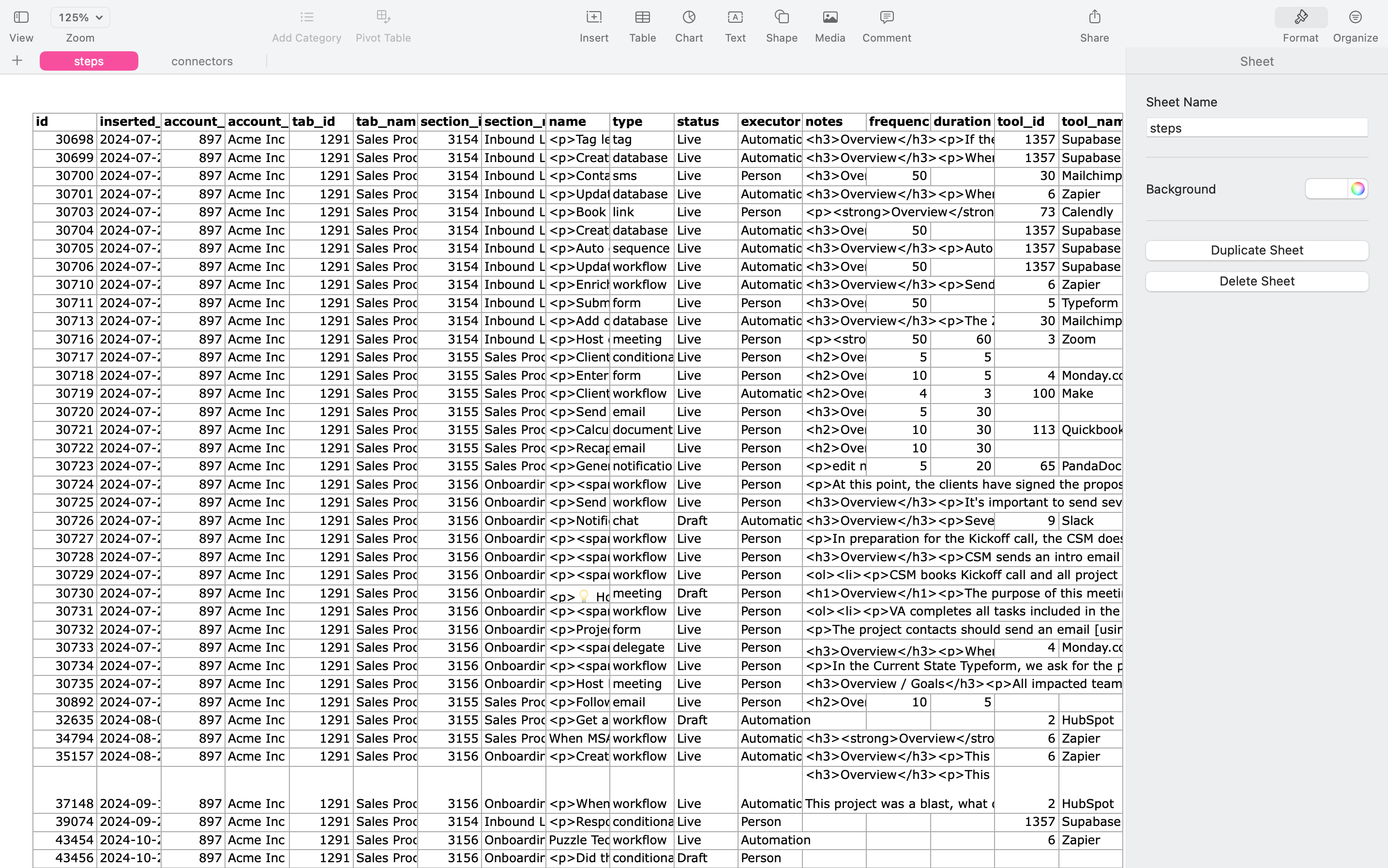
3️⃣ Open the File
Open in Excel, Google Sheets, or any tool that reads .xlsx.
📊 The file contains two sheets: Steps and Connectors.
🔍 Use the ID columns to cross-reference steps and connectors (for example,
from_step_idon Connectors matchesidon Steps).
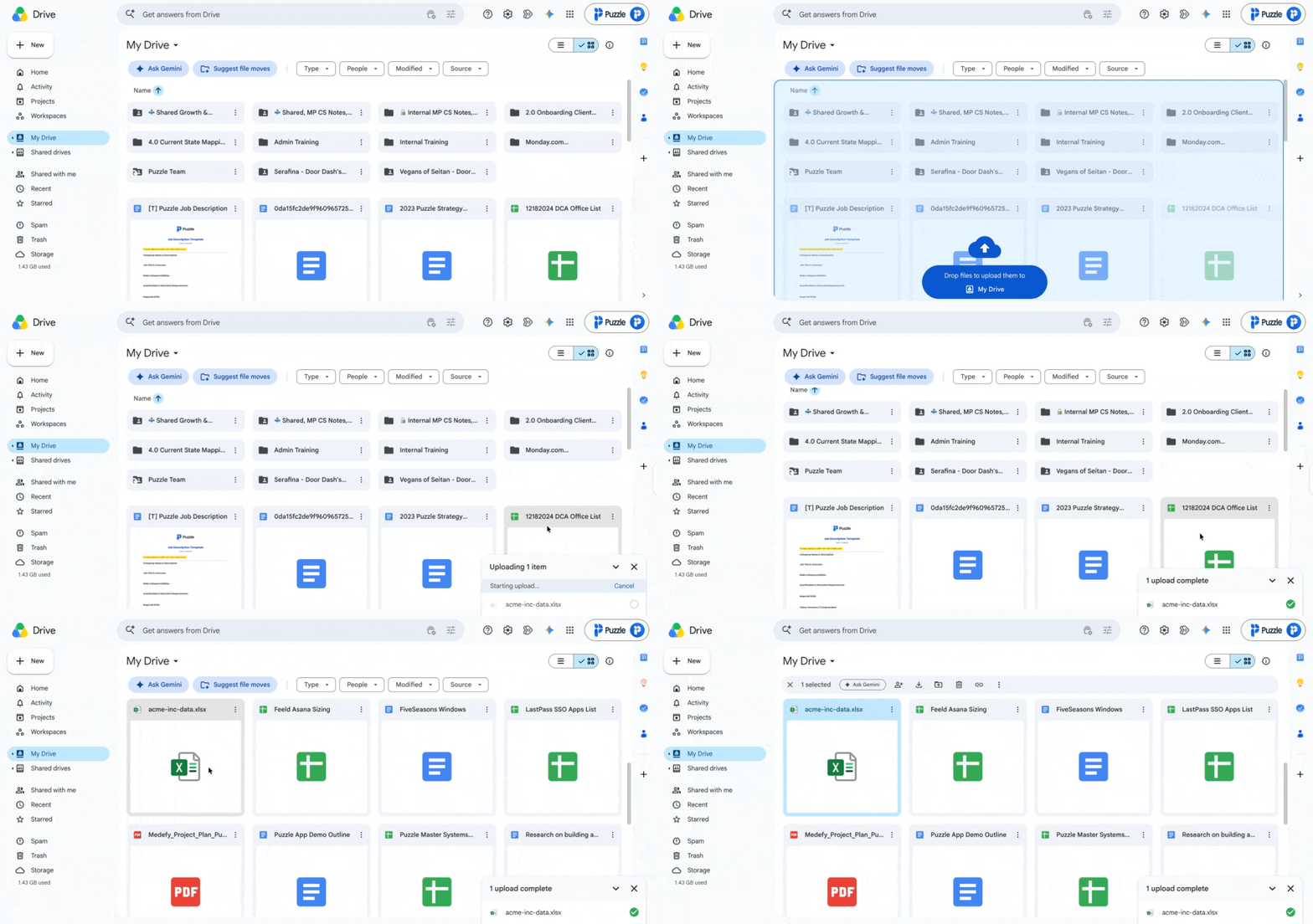
Excel File in Google Sheets:
What's in the Puzzle Data Export
The export is a single .xlsx file with two sheets.
📋 Steps Sheet
One row per workflow step. Each row carries the step's id along with its section, tab, and linked tool by name and ID.
🔗 Connectors Sheet
💡 Best Practices
📆 Export on a schedule. Add a monthly or quarterly export to your team's calendar so you always have a recent snapshot of your workflow data.
🔒 Store exports securely. The file contains your workspace's full workflow structure. Keep it wherever your team stores other operational backups.
🧮 Use step IDs to cross-reference. The connectors sheet references steps by from_step_id and to_step_id. Use VLOOKUP or filter by these IDs to see which steps a connector links.
📤 Filter before you share. If you're sharing the file with people outside your team, remove columns or rows they don't need. Editing in Excel is faster than redacting after the fact.
Frequently Asked Questions
Q: What file format does the export use?
An .xlsx (Excel) file. It opens in Microsoft Excel, Google Sheets, Apple Numbers, and any other spreadsheet tool that reads Excel files.
Q: Does the export include teams, people, or tools canvases?
No. This first release covers workflow steps and connectors only. Section and tab context is captured as columns on the Steps sheet.
Q: How often can I export?
As often as you need. Each export generates a fresh file with your current workflow data.
Q: Can I export just one workflow or tab?
The export includes every step and connector in the entire workspace. Filter the resulting file in your spreadsheet tool if you only need a subset.
Q: Where do I find the file after downloading?
The file downloads to your device's default downloads folder.
Conclusion
Your workflows shouldn't live in one place.
They're meant to be analyzed, shared, backed up, and used to drive better decisions across your organization.
Export your workspace whenever you need it, and keep your operational data working long after you've left the canvas!
Related: Workflows Canvas · Feature Overview · Puzzle MCP · MCP Prompt Library
Still need help? Ask the team